
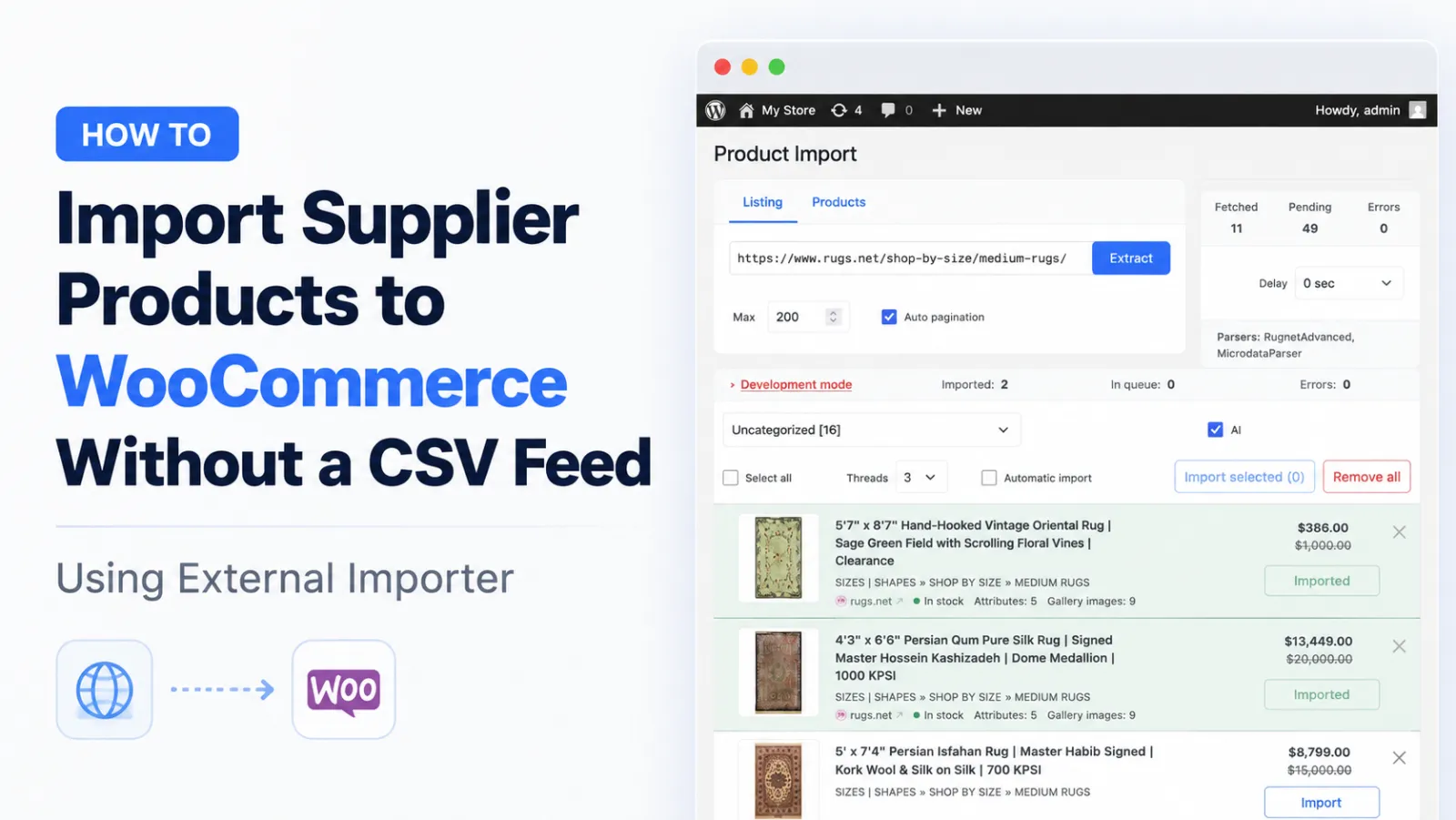
You found a good supplier.
The products look right. The prices are acceptable. The niche is not overcrowded. Maybe it is a local distributor, a manufacturer, a B2B wholesaler, or a brand that is not already used by thousands of identical dropshipping stores.
So you ask them a simple question:
Can you send me a product feed?
And the answer is usually something like this:
We do not have CSV.
We can send you a PDF catalog.
You can copy products from our website.
Please ask your sales manager.
We do not provide API access.
This is a very common situation.
Many real suppliers have good products, but they do not have clean product data prepared for WooCommerce. Their website works as a catalog, but not as a proper product feed.
And now you have a strange problem.
You already found products to sell, but you cannot quickly turn them into a WooCommerce catalog.
The problem is not the products.
The problem is product data.
In this article, I will show a practical way to import supplier products to WooCommerce when there is no CSV, no XML feed, and no API.
Why many suppliers do not provide product feeds
Many WooCommerce store owners expect that every supplier should have a CSV file.
In practice, it is not so simple.
A lot of manufacturers, wholesalers, and distributors are not e-commerce-first companies. They may sell mostly to installers, offline shops, contractors, showrooms, dealers, or long-term B2B customers.
Their internal product data may be stored in different places:
- ERP system
- Excel price lists
- PDF catalogs
- warehouse software
- old website CMS
- image folders
- dealer portal
So even if they have products, they may not have one clean database that can export everything in a WooCommerce-ready format.
Sometimes suppliers also do not want to share a full feed.
There can be many reasons.
Dealer pricing may be different for every customer. Stock can depend on warehouse, country, or delivery terms. Some suppliers do not want their full catalog copied by hundreds of small stores. Others are afraid that price data will be indexed, leaked, or used by competitors.
And sometimes the reason is even simpler.
Their website is mostly a brochure or online catalog. It was never built as a data source for resellers.
This does not mean the supplier is bad.
It only means you need another way to work with their product pages.
Manual product entry does not scale
For 5 or 10 products, manual work is fine.
You open the supplier product page. Copy the title. Copy the description. Download images. Add price. Add SKU. Add specifications. Create a WooCommerce product. Repeat.
Nothing complicated.
But it becomes painful very quickly.
For 100 products, it is already a lot of work.
For 1,000 products, it is almost unrealistic.
Manual product entry also creates mistakes. You miss images. You copy specifications incorrectly. You forget some attributes. You add products to the wrong category. And after a few weeks, some prices or stock statuses are already outdated.
This is where many store owners get stuck.
They have a supplier. They have products. They may even have good margins.
But they cannot build the product catalog fast enough.
What to do when there is no CSV, XML, or API
First, let’s be clear.
If your supplier gives you a clean CSV or XML feed, use a feed import tool.
That is the best case.
If your supplier gives you API access, custom integration may be a good solution, especially when you already know that the store works and you need deep long-term synchronization.
But many suppliers do not give you any of this.
They only have product pages on their website.
In this case, you need a different workflow.
External Importer helps WooCommerce store owners import products from supplier product pages when no structured feed is available.
It can extract product data from product pages and create WooCommerce products from it.
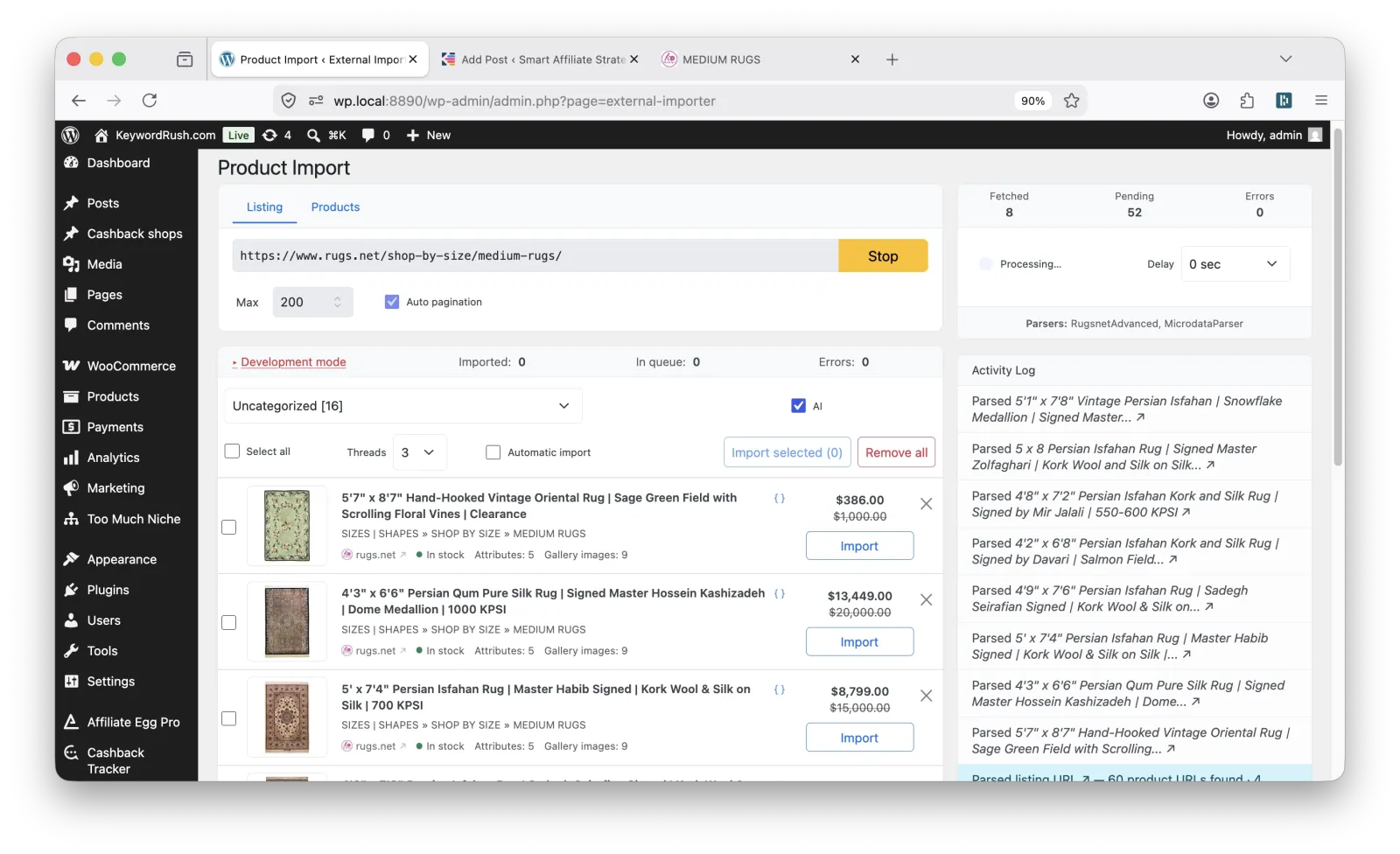
For example, it can import:
- product title
- description
- short description
- main image
- gallery images
- category
- specifications
- price
- stock status
- custom data into custom fields
The idea is simple.
If the supplier does not give you a product feed, but product data exists on their website, you can use these product pages as the source for WooCommerce product creation.
Start with permission
Before you import supplier content and images, ask your supplier if you can use their website materials in your store.
Usually this is not a problem.
If you are their dealer or reseller, they are interested in selling more products through you. But it is still better to ask.
You can keep the message simple:
We want to list your products in our WooCommerce store. Can we use product descriptions, images, specifications, and prices from your website for this purpose?
This is not a technical step, but it is important.
It helps avoid misunderstandings later.
Do not start with 1,000 products
This is a common mistake.
A store owner finds a supplier and immediately wants to import the full catalog.
I do not recommend this.
Start with 5–10 product URLs.
Import them as drafts. Check what data is detected. Review titles, images, descriptions, prices, stock status, categories, and specifications.
You need to see how the supplier website is structured before you build the full import process.
Some websites are easy.
Some need small adjustments.
Some need a custom parser.
This is normal. Supplier websites are very different.
Improve supplier content with AI
Supplier content is not always good for your store.
Sometimes it is too short.
Sometimes it is too technical.
Sometimes it is copied from the manufacturer and used by many other resellers.
Sometimes it is written more for engineers, installers, or B2B buyers than for normal online customers.
External Importer has built-in AI features that can rewrite and improve content during import.
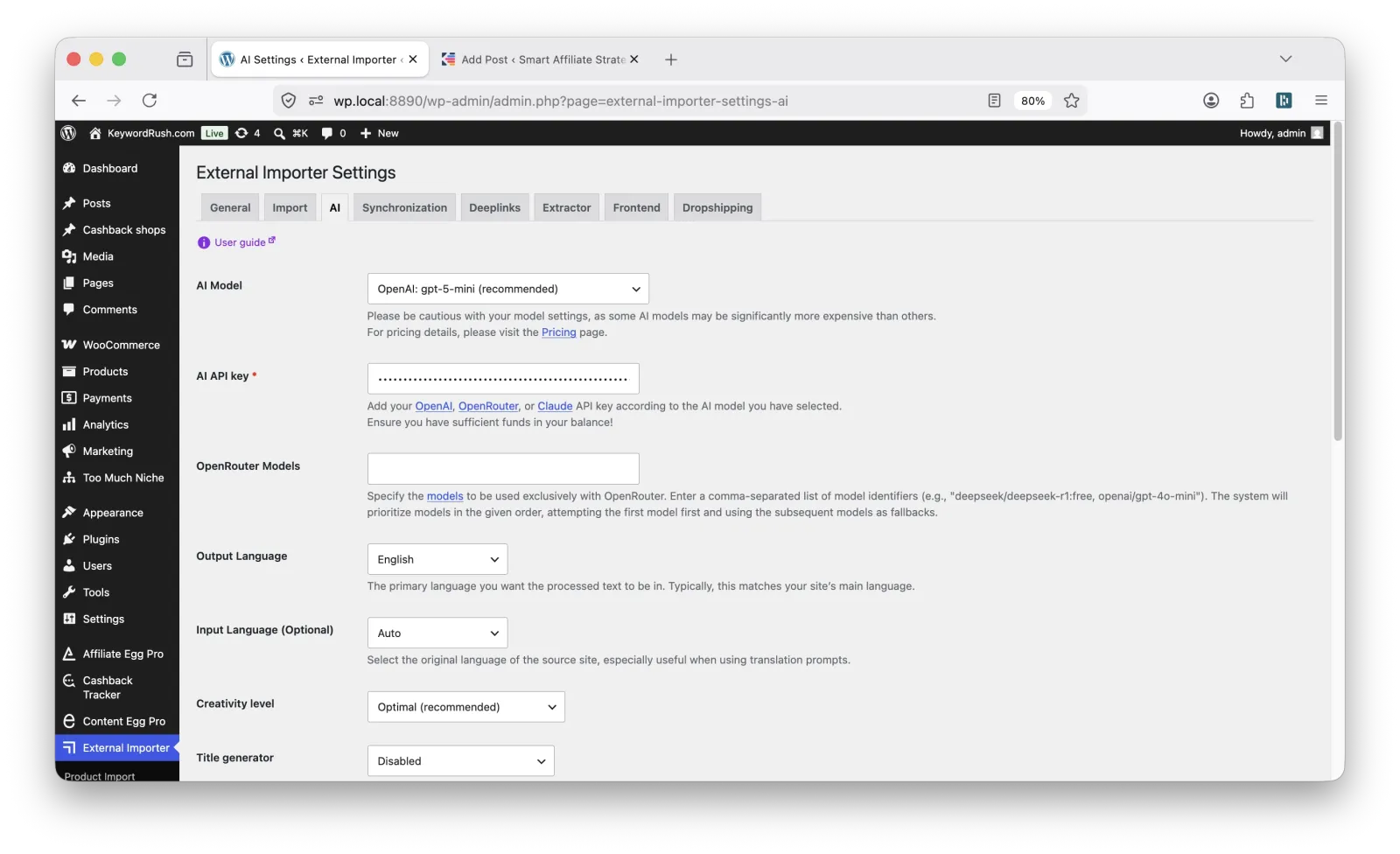
You can use it to create better product titles, rewrite descriptions, and make product content more unique.
This is useful for SEO, but also for users.
A better product description helps the buyer understand the product faster.
And this matters, especially when your supplier website is not very customer-friendly.
Add your markup rules
If you sell supplier products, you usually need to adjust prices.
Your selling price is not always the same as the supplier price.
You may need to add a fixed margin, a percentage markup, or different rules for different product groups.
External Importer allows you to add custom markup rules during product import.
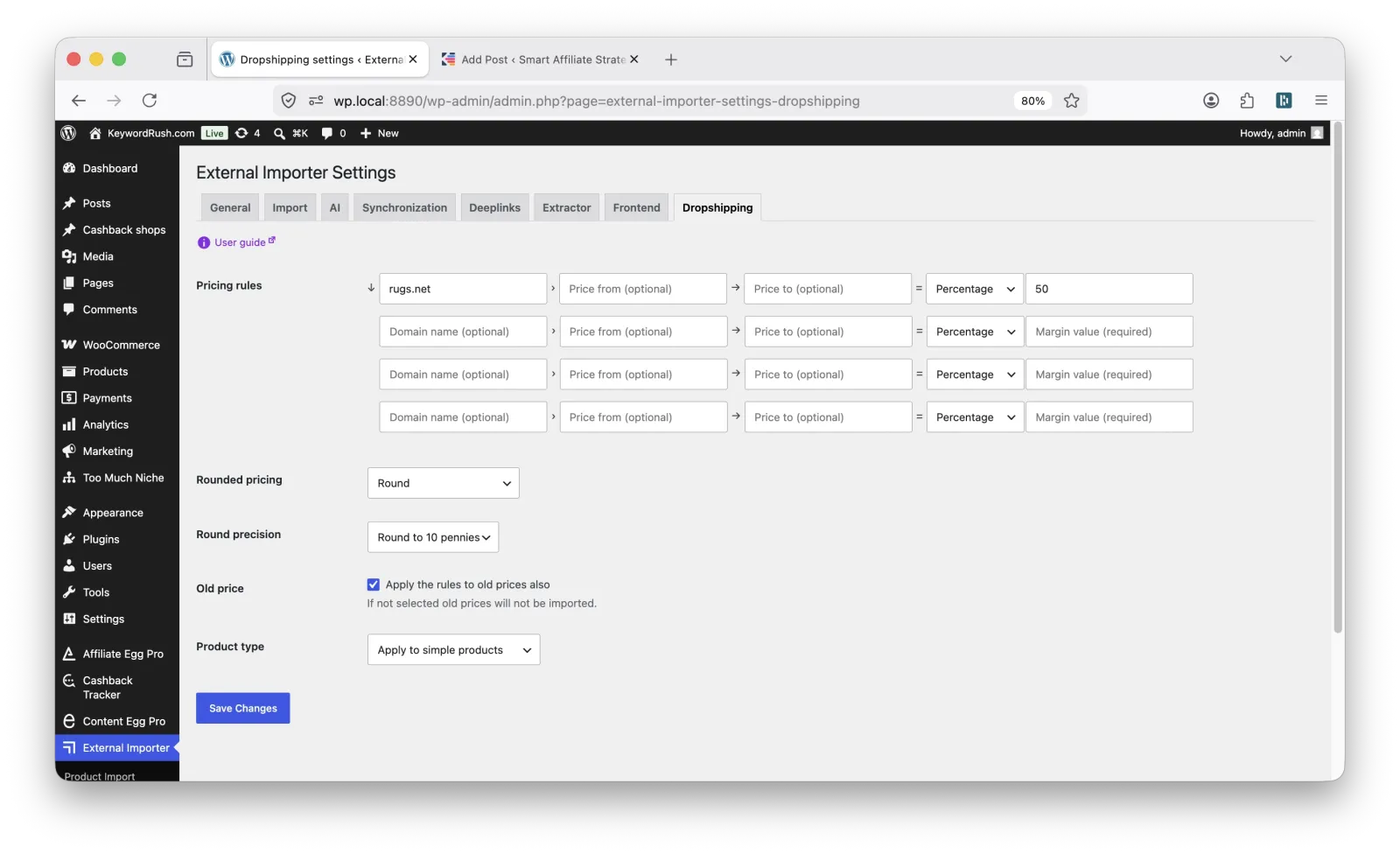
This is useful for dropshipping and supplier-based WooCommerce stores, because pricing should not be handled manually for every product.
Manual pricing is fine for a few products.
But when you work with hundreds of products, you need rules.
Keep prices and stock updated
Importing products once is only the first step.
Supplier prices can change.
Products can go out of stock.
New products can appear.
Old products can be removed.
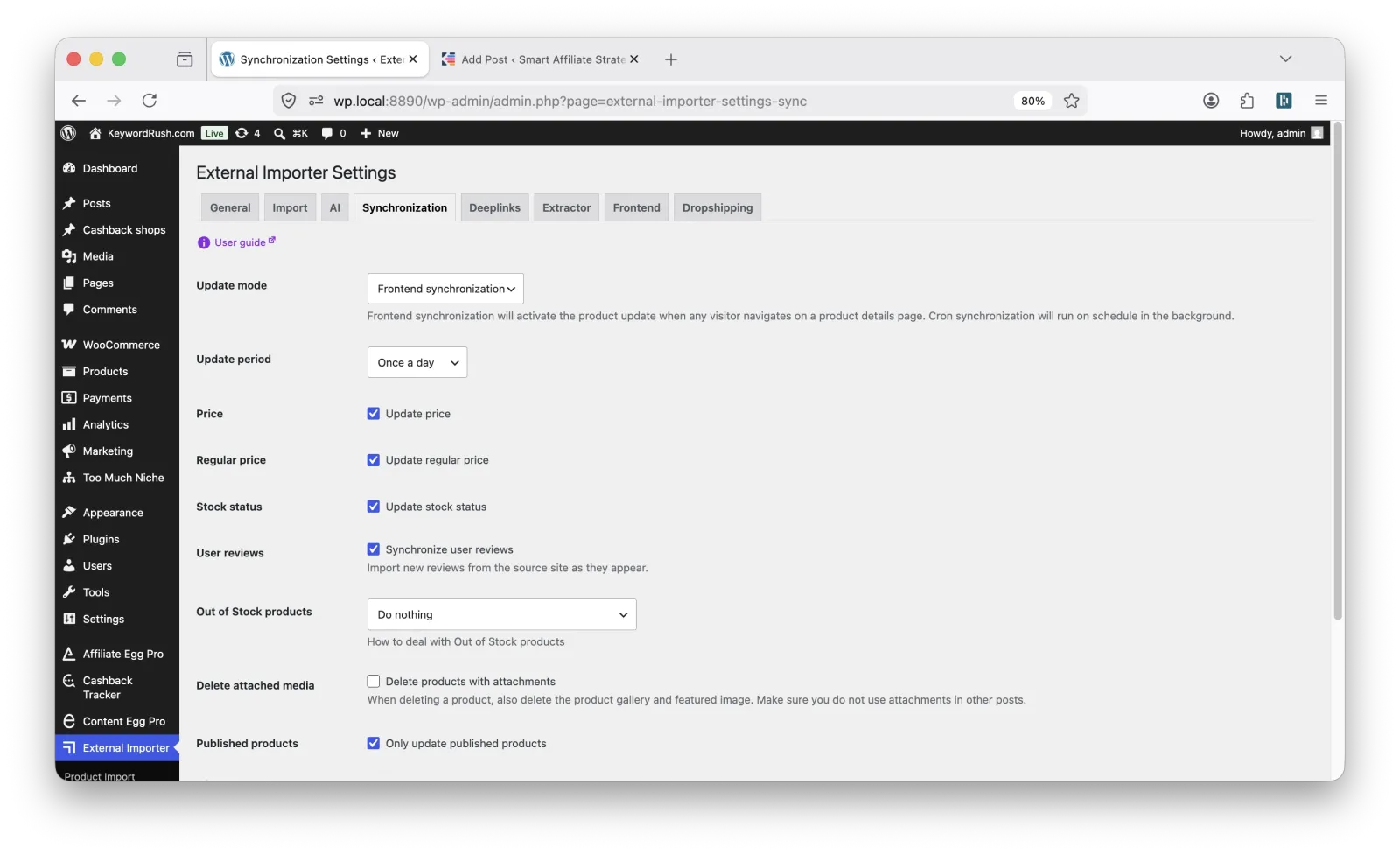
External Importer can automatically update prices and stock status for imported products.
For many stores, this is already enough to move from manual work to a much more practical workflow.
When a custom parser is needed
External Importer works best when the supplier website has clear product pages and structured product data.
But not every supplier website is modern.
Some websites are old. Some have unusual HTML. Some do not include product schema. Some load product data in a custom way. Some hide important information in tabs, scripts, or dealer areas.
In these cases, a custom parser may be needed.
A custom parser is created for a specific supplier website. It tells External Importer how to extract product data more accurately from that website.
This can be useful when you need to import:
- product variations
- custom specifications
- special price fields
- additional product data
- data into WooCommerce custom fields
Product variations are supported with custom parsers.
I also provide custom parser services for External Importer. Usually the cost starts from $50, depending on the complexity of the website.
What if the supplier website requires login?
Many B2B suppliers show prices, stock, or some product details only after login.
Usually this is not a problem.
You can authorize External Importer with your user credentials and import products from the supplier website as an authorized user.
Of course, you should have permission to use this account and supplier content for your WooCommerce store.
This is a common situation with dealer portals and B2B supplier websites.
Real supplier websites we have worked with
I released External Importer in 2020.
Since then, it has helped build more than 100 WooCommerce shops that sell supplier products.
Here are some examples of manufacturer, brand, wholesale, and B2B distributor websites we have worked with:
- adiglobal.se
- autographfoliages.com
- eko-light.com
- ottiaustralia.com.au
- stedi.com.au
- yakima.com.au
- tk-lighting.com
- domus-sesvete.hr
- landmaster.hr
- optonicaled.com
- aromatix.bg
- ggmgastro.com
- rugs.net
- dcs.dk
These are different industries, different countries, and different website structures.
Some websites are easy to import from.
Some require custom parser logic.
Some are good enough for simple products, but still need manual review before publishing.
This is normal.
The main point is that you are not limited only to suppliers who provide a perfect CSV feed.
When External Importer is a good fit
External Importer is useful when:
- your supplier does not provide CSV
- your supplier does not provide XML
- your supplier does not provide API access
- products are available on supplier product pages
- you want to create WooCommerce products faster
- you want to test a supplier before investing in custom integration
- you work with local, niche, B2B, or manufacturer websites
- you need simple WooCommerce products for a dropshipping or supplier-based store
It is also useful for agencies.
Very often an agency builds a WooCommerce store for a client, and the client has several supplier websites but no structured product data.
The budget is too small for custom API development.
Manual entry is too expensive.
But the store still needs a product catalog.
In this case, importing products from supplier pages can be a practical solution.
When you still need a feed or API
External Importer is not magic.
It does not replace every supplier feed or API.
If you need real-time dealer pricing, warehouse-level stock, automatic order placement, invoices, shipping labels, payment terms, or deep ERP integration, you probably need a proper supplier API or custom integration.
So the rule is simple:
If you have CSV, XML, or API, use it.
If you only have supplier product pages, External Importer can help.
If you need deep B2B integration, ask your supplier about a dealer feed or API.
Conclusion
Many good suppliers do not provide clean product feeds.
This is especially common with manufacturers, B2B distributors, local wholesalers, and niche brands.
They may have good products, but no CSV, no XML, and no API. Their website is often the only practical source of product data.
In this situation, product data becomes the bottleneck.
External Importer helps WooCommerce store owners import products from supplier product pages, create product listings faster, improve content with AI, apply markup rules, and keep prices and stock updated.
It is not a replacement for every feed or API.
But when your supplier says, “We only have the website,” you still have a practical way to move forward.

With 20 years in affiliate marketing, Serge creates practical WordPress tools such as Content Egg and External Importer that help publishers manage and grow their affiliate sites.