
If your readers live in the Netherlands or Belgium, they probably buy from Bol.com. It’s one of the largest online shops in both countries, and people there are used to ordering from it. That makes its affiliate program, the Bol.com Partner Program, a natural way to earn from a Dutch or Flemish niche site.
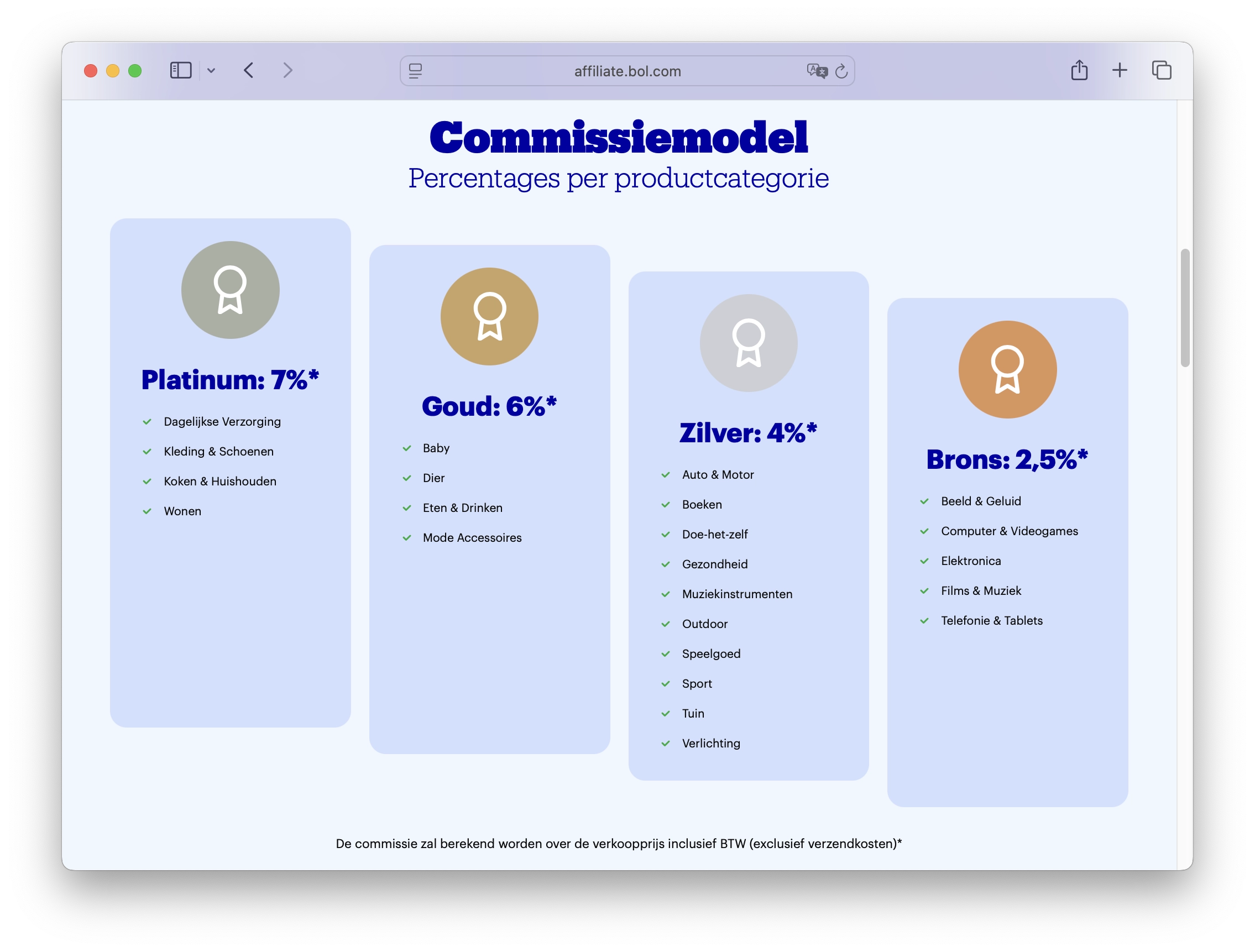
Commission rates depend on the product category. You’re also paid for any qualifying purchase the visitor makes on Bol.com within the cookie window, not only for the product you linked. Check the current rates and cookie duration in the partner portal before you commit to a niche.
Most Bol.com buyers are in those two countries, so write your site in Dutch. You don’t have to be Dutch for that. AI tools can write in Dutch, and local-language niches are often easier to rank in because there is less competition. If your site is in English for a global audience, you can still link to Bol.com, but those visitors will usually prefer Amazon or their own local shops.
This guide walks through the whole setup on WordPress: joining the program, connecting it to your site, adding products to posts, and filling the site with articles. If you’d rather watch first, the 6-minute video covers the same steps.
What you need before you start
- A WordPress site with a theme installed. This guide skips hosting and installation.
- Content Egg Pro. It pulls products from Bol.com’s API into your posts and keeps their prices up to date.
- A Bol.com Partner Program account. Step 1 covers the application.
- Too Much Niche (optional). It writes the articles and fills them with Bol.com products through Content Egg.
- A niche. Coffee machines, kids’ toys, home office gadgets, camping gear: something specific, ideally something you care about and that Bol.com stocks well. Reviews, comparisons and buying guides are much easier to write when you actually know the topic.
Commission rates differ by category, so check them before you settle on a niche. Consumer electronics tend to pay less, while toys, home appliances and baby products pay more.
Two Bol.com sites built this way
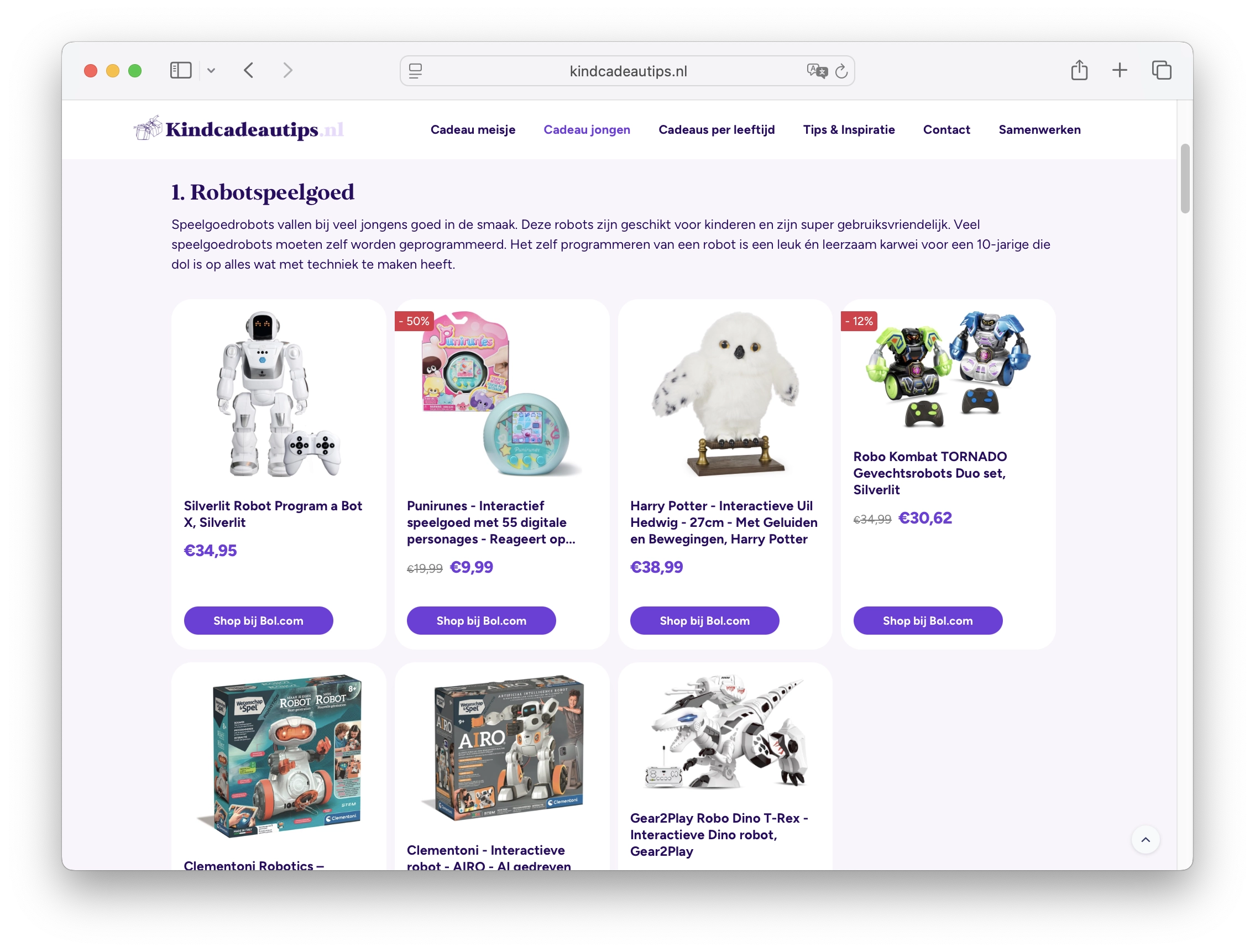
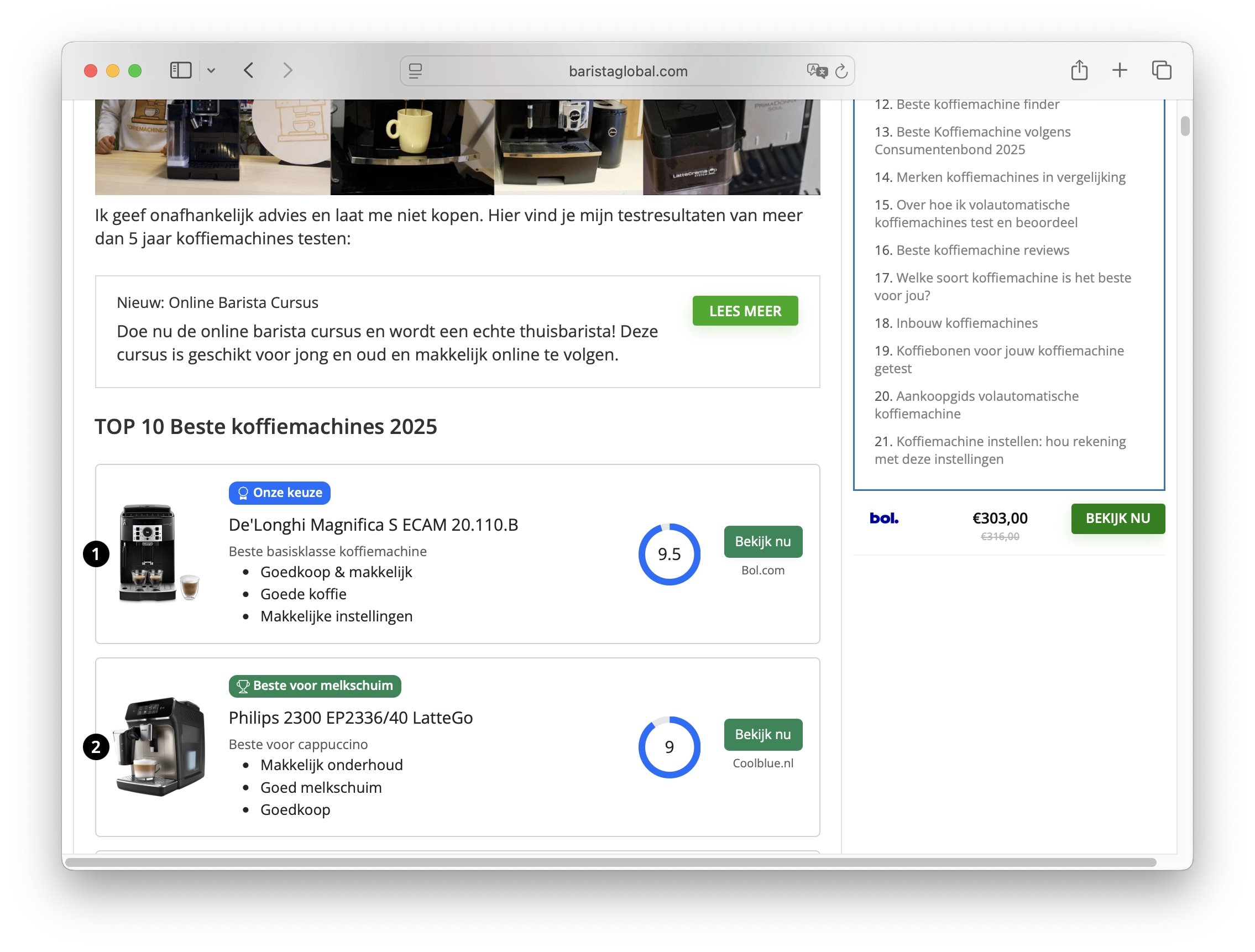
Bol.com’s partner portal has a “Success Stories” section. Two of the sites there use Content Egg to show Bol.com products inside WordPress posts. Kindcadeautips.nl recommends gifts for children and earns from toy and book links. BaristaGlobal.com reviews espresso machines and coffee accessories. Both have built up steady organic traffic over time.
Step 1: Join the Bol.com Partner Program
Register as a new affiliate on the Bol.com Partner Program. The application asks for your personal details and for information about your website. If you already shop on Bol.com, you can log in with that account, but a separate account for your affiliate work keeps things apart.
Bol.com reviews applications by hand, so prepare the site before you apply:
- Have real content online. A blank or “under construction” site is less likely to be approved. Nicole van Roekel, who runs Kindcadeautips.nl, waited until her site had about 10 well-written pages before she applied. You don’t need API access to write those pages: Too Much Niche can generate informational articles and how-to guides, which carry no product blocks, and you add products once you’re approved.
- Use your own website or app. Bol.com is cautious with promoters who only use social media, so an Instagram page full of affiliate links may be rejected.
- Follow their terms. They prefer family-friendly content and compliant marketing.
Once you’re approved, you get the affiliate dashboard. There you can create links by hand, see your reports, and find banners and the success stories mentioned above.
Step 2: Connect Content Egg to Bol.com
Install and activate Content Egg Pro first. Then:
- In the Bol.com affiliate dashboard, click Account in the top menu and scroll to the API toegang (API access) section. Create new API credentials for the Marketing API, then copy the Client ID and Client Secret.
- On the same Account page, go to the Website section and copy your Website Code.
- In WordPress, go to Content Egg → Modules and open the Bolcom module. Paste the Client ID, Client Secret and Website Code. Check that no spaces came along with them.
- Set Price Update. It’s in seconds: 86400 means prices refresh once a day. Price comparison sites sometimes update every few hours. Content Egg then updates prices on that schedule by itself, so you never edit a price by hand.
- Tick Enable module and save.
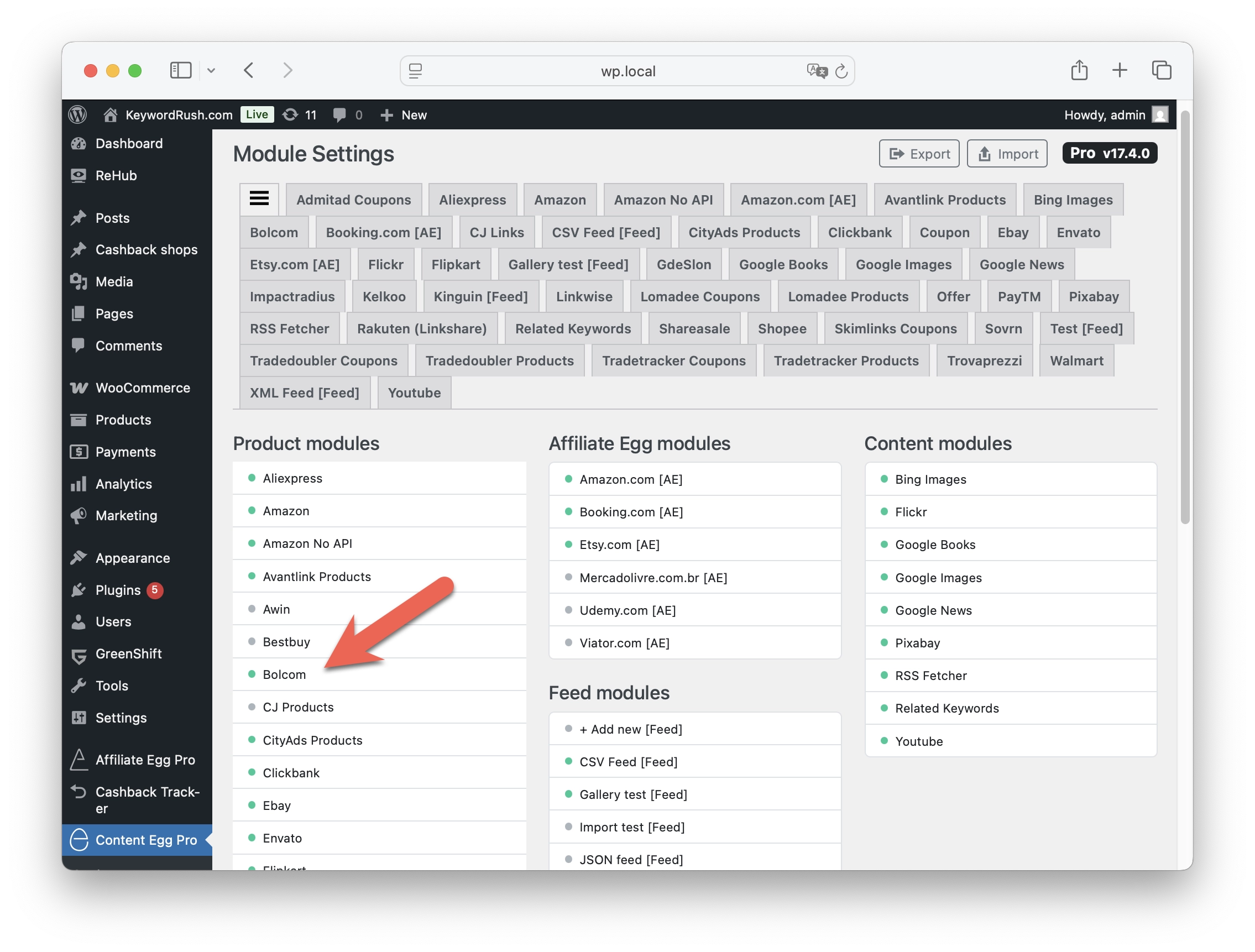
Your site can now fetch product names, images and prices from Bol.com. The Bolcom module docs show the same steps with screenshots of the Bol.com dashboard.
Step 3: Find products in the post editor
Open a post in the block editor (the classic editor works too) and you’ll find the Content Egg product search there. The Bolcom module accepts four kinds of input:
- Keywords, like “espresso machine” or a model name such as “De’Longhi Magnifica”.
- An EAN (GTIN), when you want exactly one model.
- A product URL from Bol.com, to pull in that exact item. Handy when you already have a list of links.
- A category URL, such as the “Best verkochte Koffiemachines” page. Content Egg treats it as a list and pulls in the top sellers from that category.
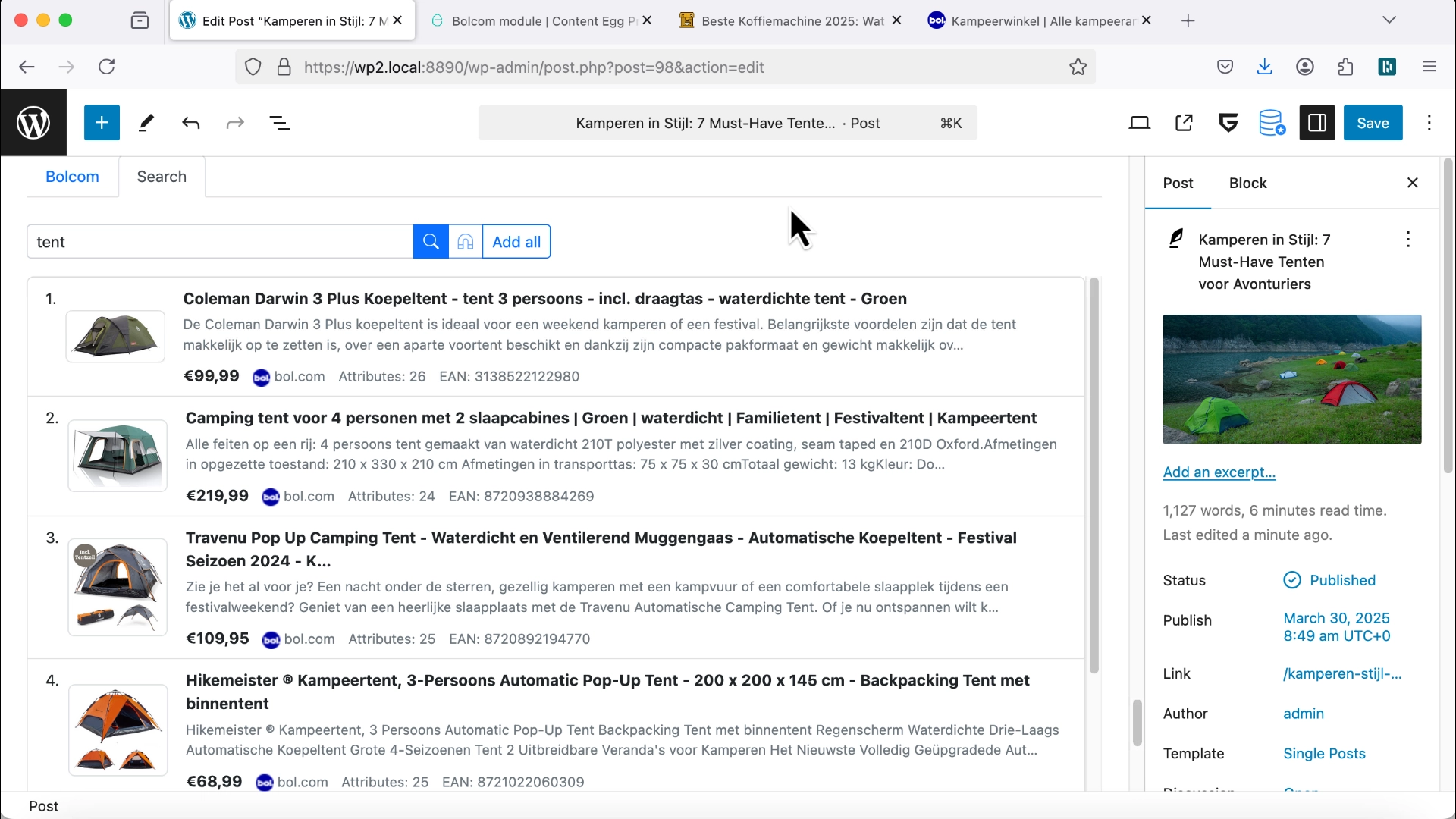
The results show each product’s title, price and image. Pick the ones you want: for a “Top 5 Tenten” roundup you might search for “tent” and choose five models. A category URL gives you the current top 5 or top 10 of that category instead, and Content Egg can keep refreshing that list, so it stays a live bestseller list.
Price and availability refresh on the interval you set in step 2. In the plugin settings you can also choose what happens when a product goes out of stock, for example hiding its price or the product itself, and you can add a keyword for auto-update so a product list refreshes itself.
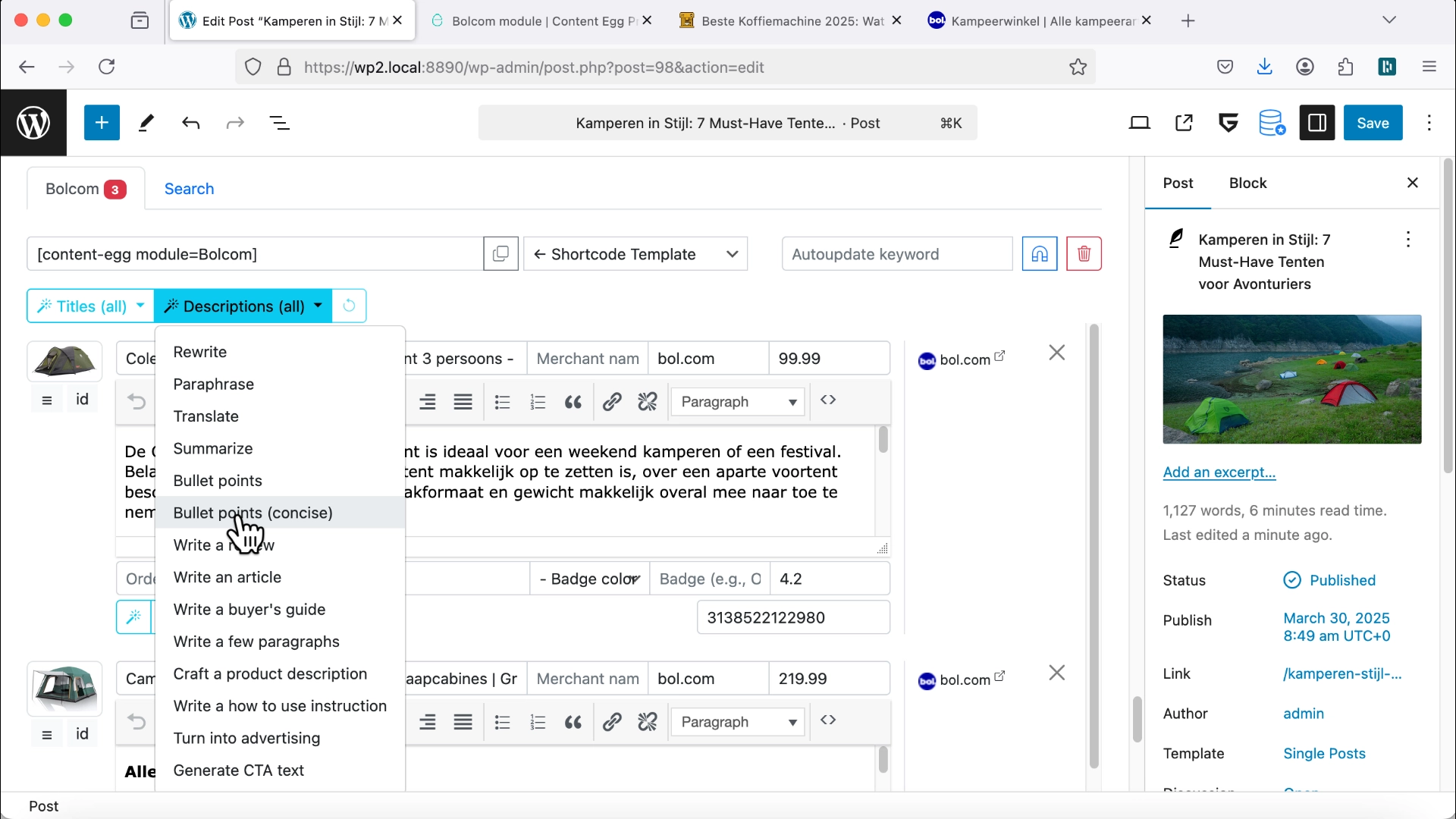
Content Egg also has an AI assistant, connected to OpenAI or another AI API. Select a product and it can write bullet points, a short description or a short review. It saves time if writing isn’t your thing, but check what it writes before you publish.
Step 4: Show the products in your post
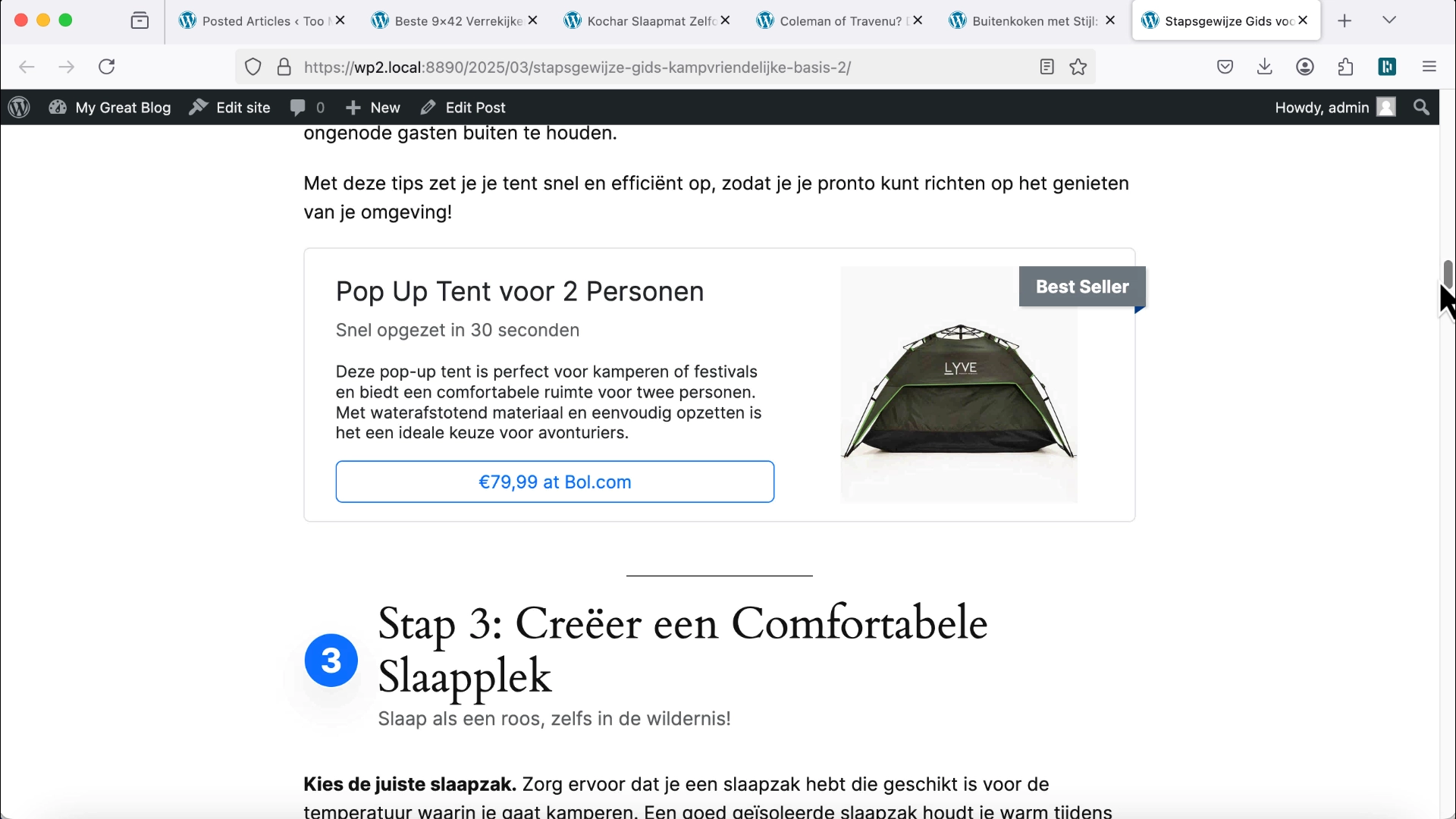
Add the CE Products block (in the Content Egg category of the block inserter) where the products should appear, then pick a template from the gallery that opens. You can switch it later with Select Template in the block toolbar. There are many templates, from simple lists to product cards and comparison tables. The ones you’ll use most on a Bol.com site:
- Product card: one product with image, title, price, a short description or rating, and a button with your affiliate link. Good for reviews.
- List: a numbered list (1, 2, 3…) with smaller images and key points. Good for “Top 10” posts.
- Grid: several products in columns, all with equal weight.
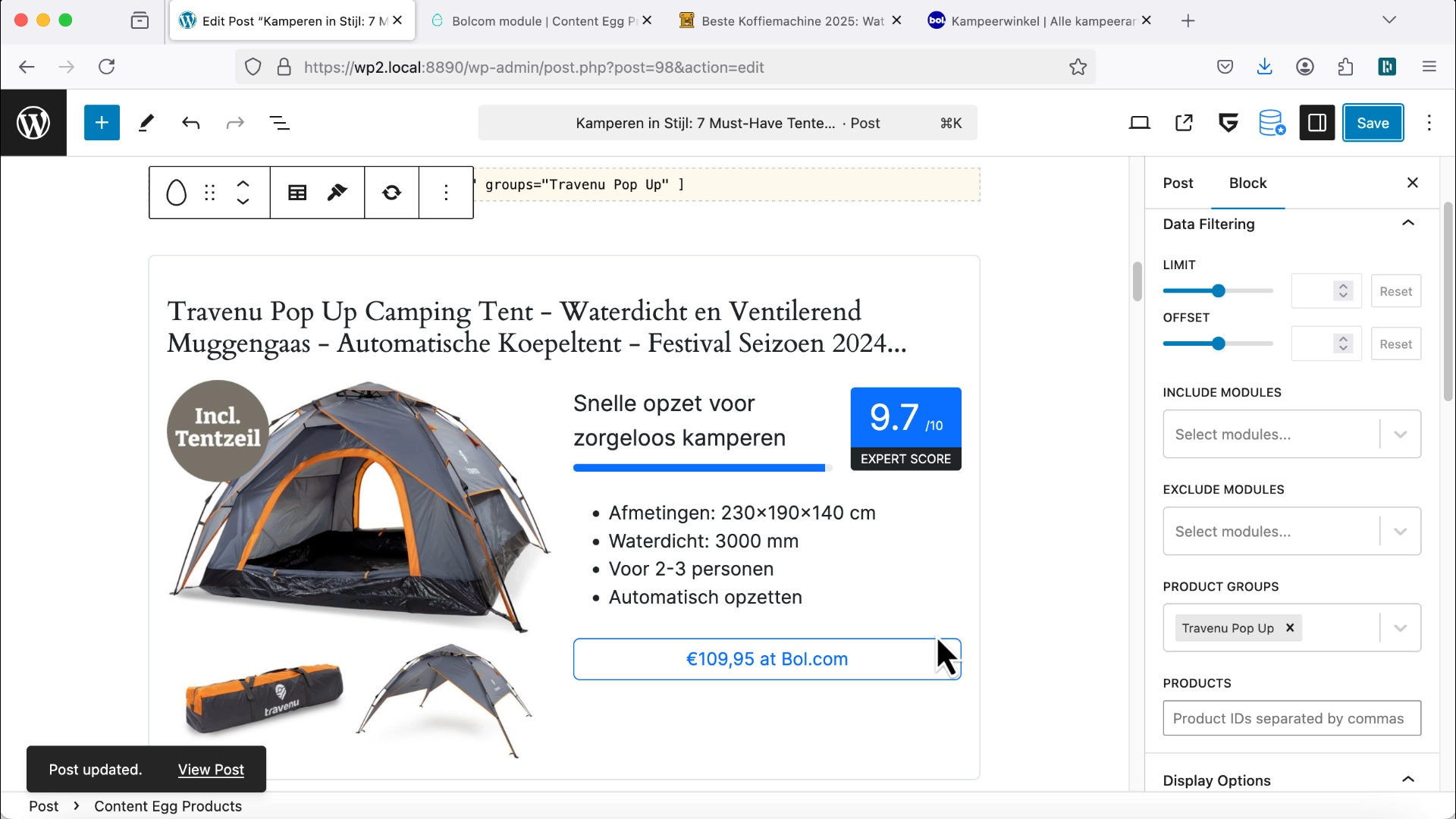
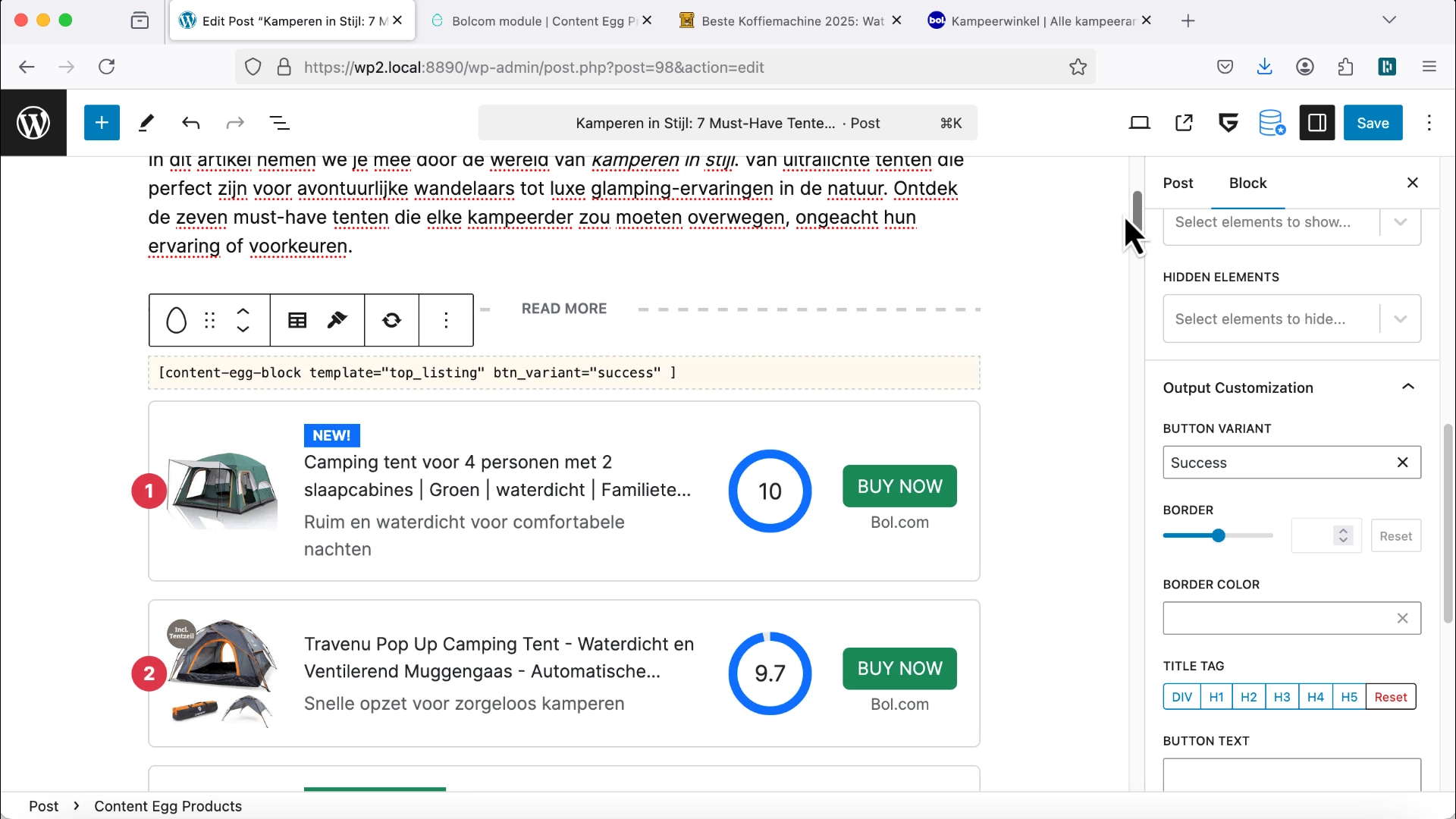
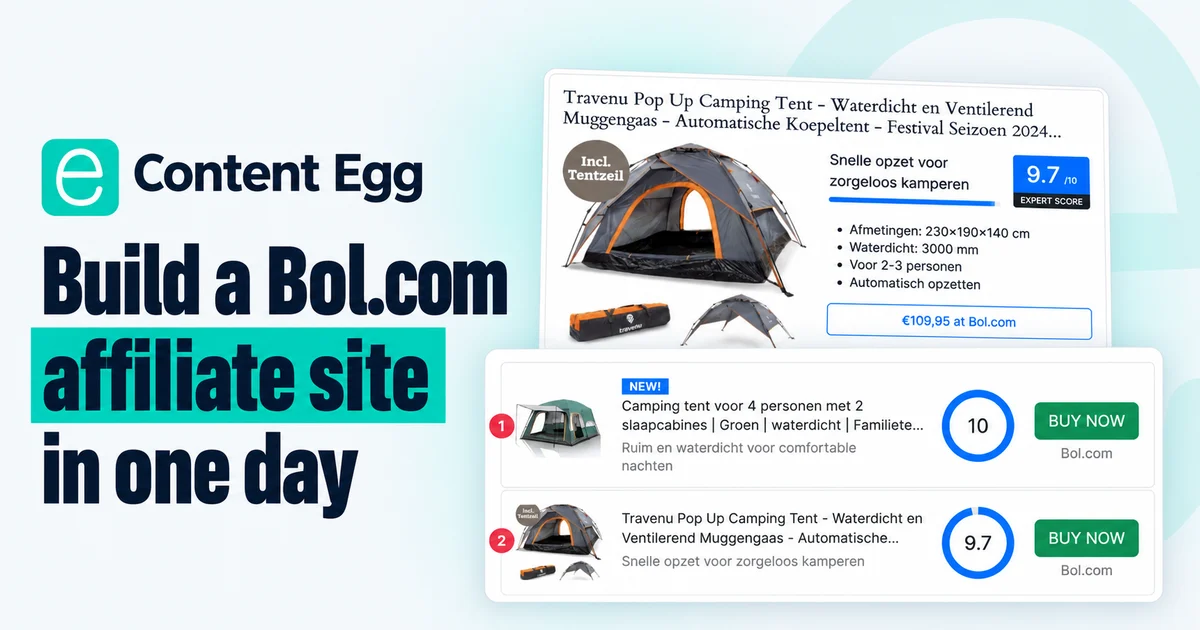
For a tent roundup, the card template shows each model with its image, name, optional bullet points, price or rating, and a “Bekijk nu” (View now) button that goes to Bol.com. The top list template shows a numbered list instead, and you can highlight one product as “Onze keuze” (Our pick), the way many comparison sites do.
You don’t need code to change the look. In the block settings you can show or hide prices, ratings, buttons and descriptions, and change the accent color and badge text (“Editor’s Choice”, “Best Value”). If your theme is dark, switch on Dark mode in the block toolbar. The templates are responsive. Still, preview the post on desktop and on a phone before you decide which template to keep.
On longer articles, use groups. Assign each product to a group and add a separate block for each group. A typical review layout has a short list of all five coffee machines at the top (group “All”), and further down a section for each machine with its own product card (groups “product1”, “product2” and so on).
Every link and button already carries your Bol.com partner ID, so you don’t build affiliate URLs yourself. Click a couple of them on the live page anyway to make sure they land on Bol.com with your tracking.
Step 5: Write the articles with Too Much Niche
Products alone don’t make a site. You still need the text around them, and that’s the part Too Much Niche does. It plans the site as a set of articles, writes them, and puts Bol.com products into them through Content Egg.
- Install Too Much Niche from the zip in your Keywordrush panel (Plugins → Add New Plugin → Upload Plugin) and activate your license.
- Go to Too Much Niche → Content Plans and click + New plan. On the Basics step, enter the niche (for example “espresso machines”), set Primary monetization to Affiliate Marketing, pick Bol.com under Affiliate networks and set the language to Dutch. The niche is the only required field.
- Click through Scale, Silo, Scan and Review. The defaults are fine for a new site. Then click Generate plan. Planning takes a few minutes and gives you a Topic Map: hubs and article nodes, each with a format such as a review, roundup, comparison or how-to.
- Click Generate on an article. One article takes a couple of minutes. To do many at once, tick them in the Content Queue and click Generate selected.
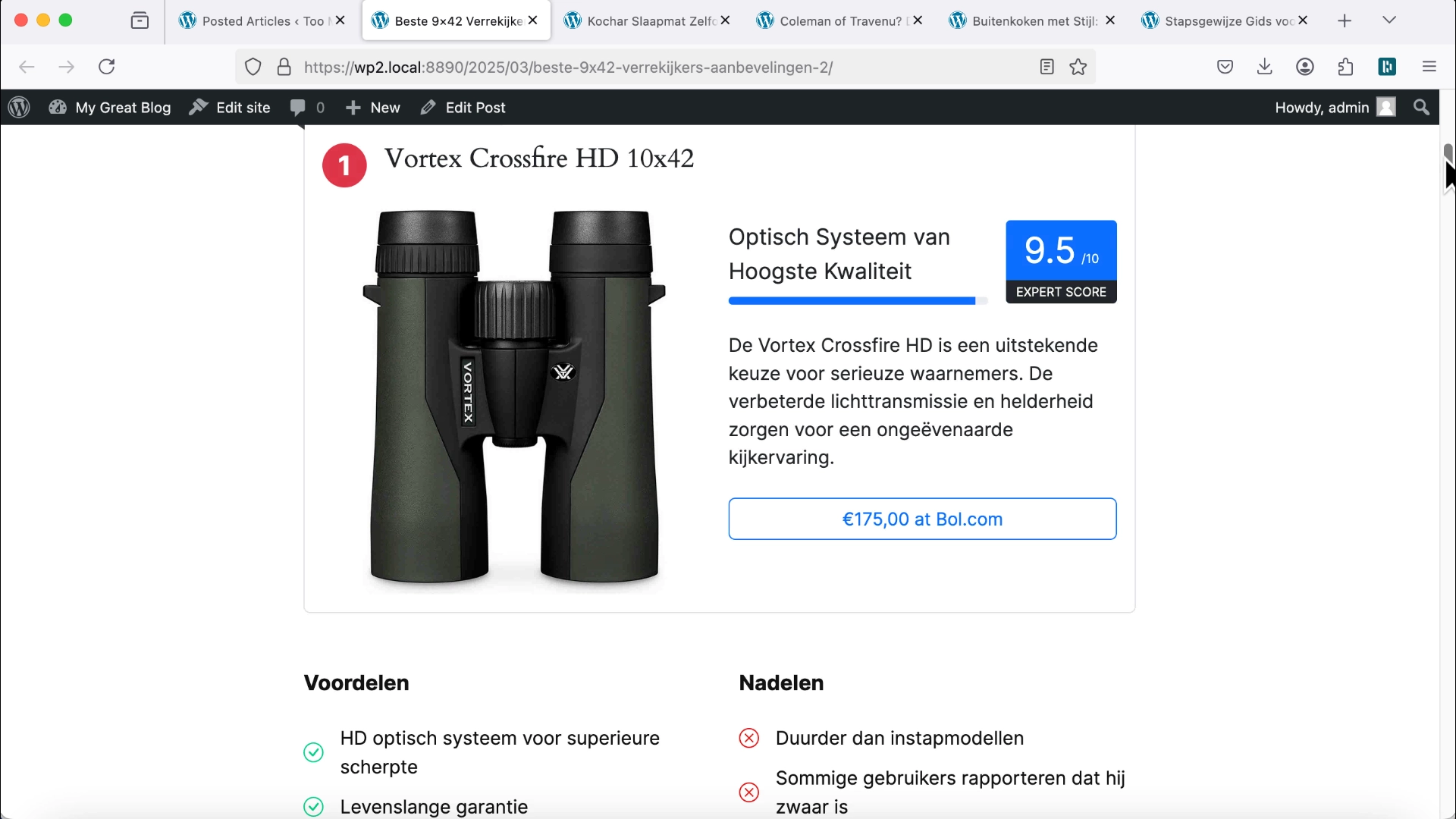
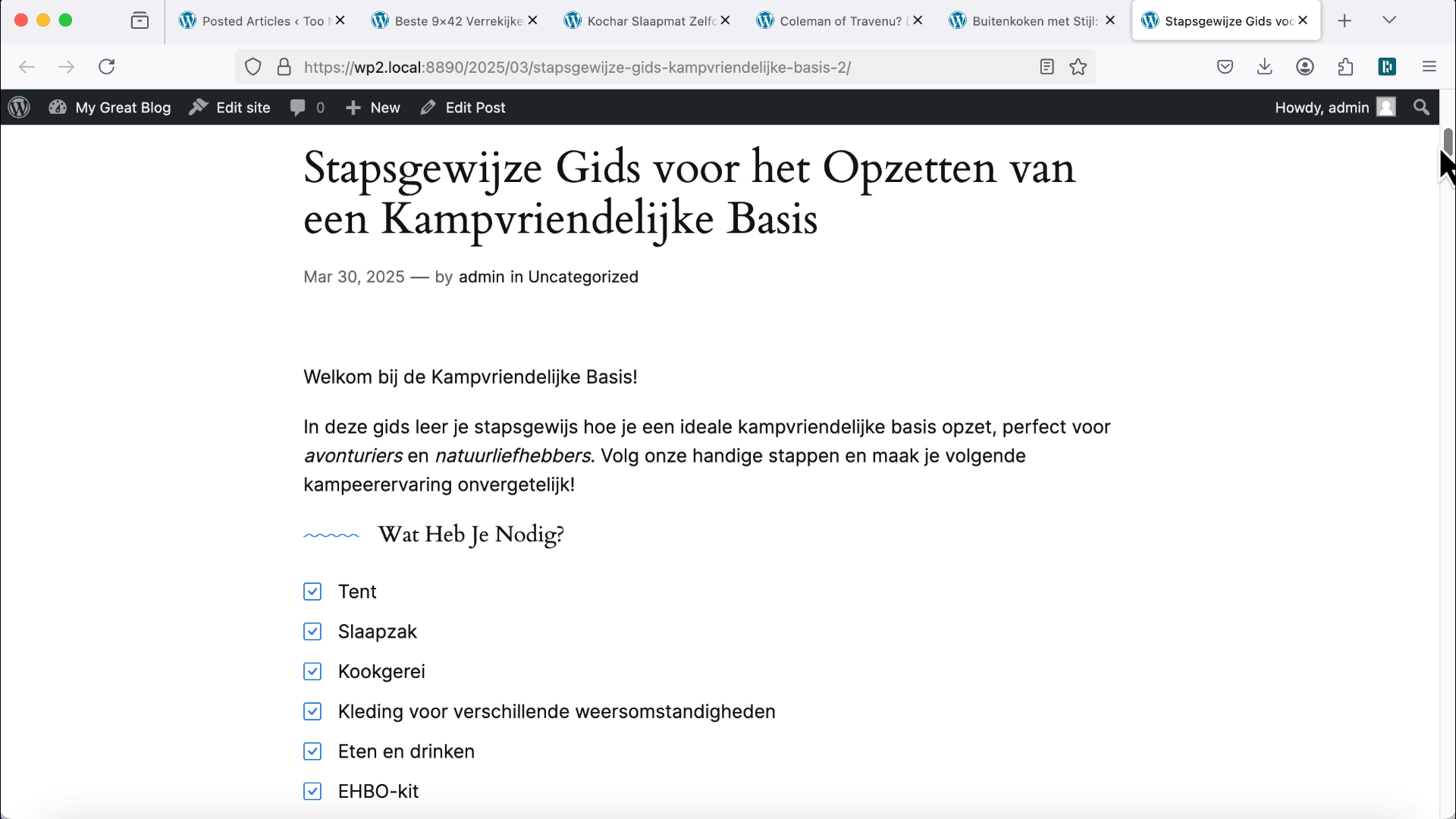
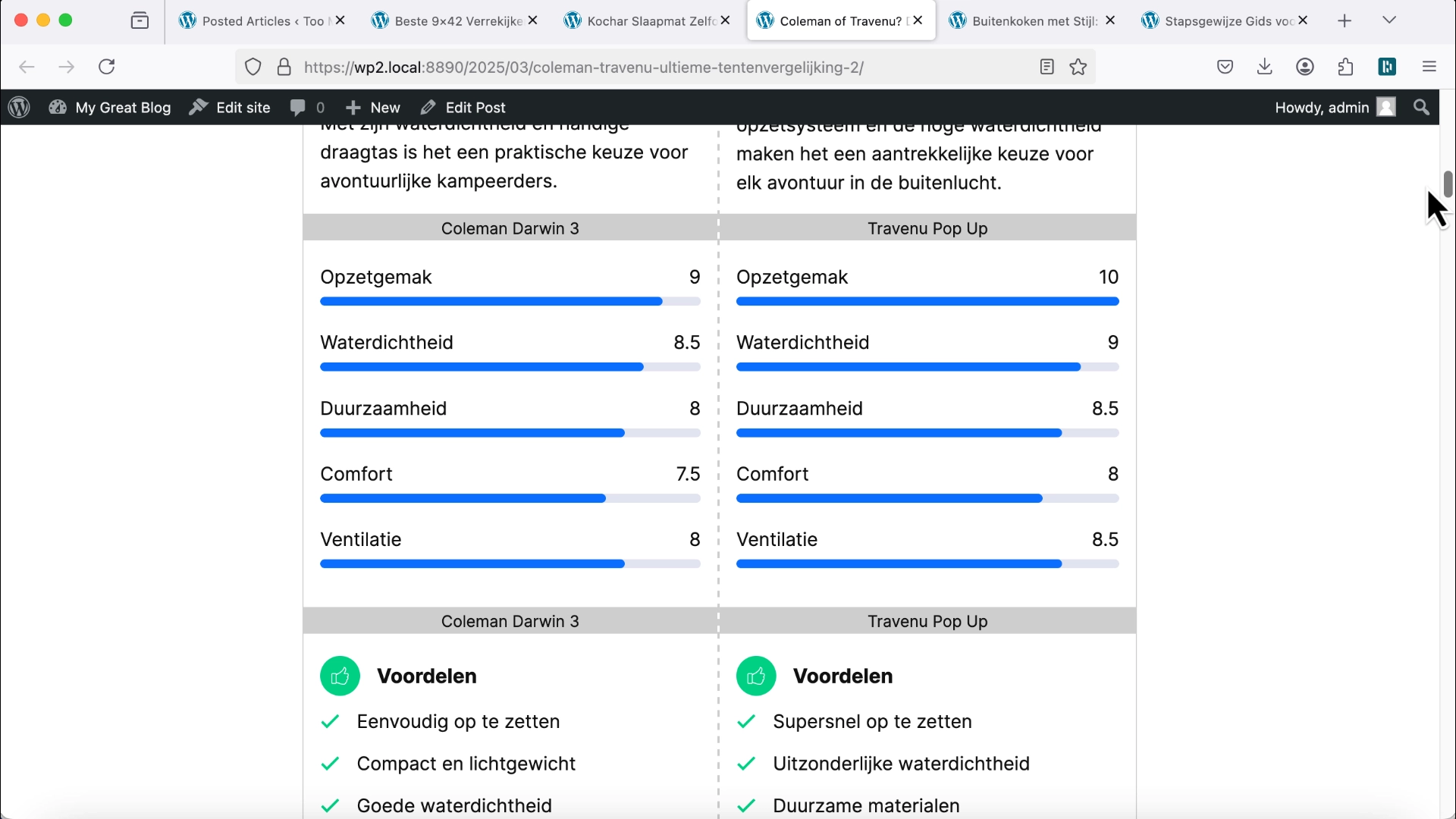
Before you generate, run a quick search in the Bolcom module from step 3 to confirm it returns products without an API error. Too Much Niche searches Bol.com for each money article, picks matching products and places them in product cards, comparison tables and pros-and-cons blocks. Informational articles get no product blocks; they bring in readers and link to the money pages. The articles are ordinary posts built from Gutenberg blocks, and Content Egg keeps their prices current.
Generated articles are published right away by default. If you want to read them first, set Post status to draft in your Generation Preset. Either way, read each one: adjust the phrasing to your voice, add your own experience and check any facts the AI may have assumed. Your own photos of a product, or a screenshot where you explain something, add credibility too.
If you write the articles yourself instead, keep the same mix. Roundups and reviews earn the commissions, while how-tos and tips bring in traffic and build authority. Those can carry a few products too: a post with coffee brewing tips can show a grinder or a bag of beans from Bol.com.
Optional: compare prices across shops
Content Egg can show offers from several shops for the same product. Say a coffee machine you review is also sold at Coolblue and Amazon.nl, and you’re an affiliate of those as well. One block can then list Bol.com, Coolblue and Amazon with their prices and a button for each. The reader finds the cheapest offer, and you earn the commission whichever shop they choose.
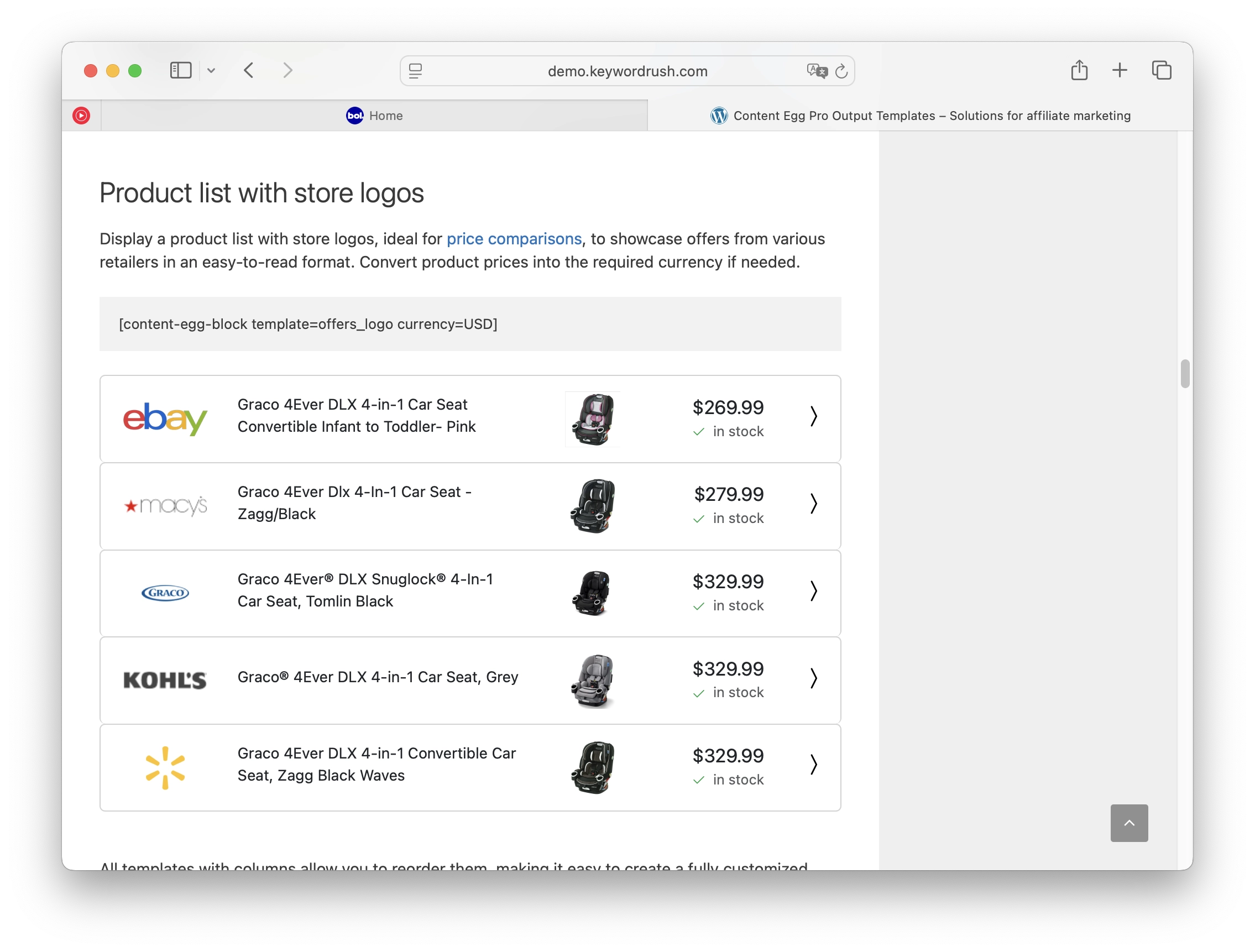
To set it up, enable more modules: Amazon, or networks with Dutch shops such as TradeTracker, Daisycon and Awin, or Sovrn. Content Egg matches the same product across shops by its EAN, in the modules that search by EAN, and the Price Comparison template shows all offers for a product in one table or list. The price comparison docs cover the details.
For a shop that has no API and isn’t in an affiliate network, there is Affiliate Egg, which pulls products straight from the shop’s website. Content Egg connects to it through its Affiliate Egg integration module. Kindcadeautips.nl, for example, uses Affiliate Egg Pro to load products from Bol.com and from other Dutch toy shops like Top1Toys for price comparisons.
None of this is needed on day one. Many affiliates start with Bol.com alone and add other shops later.
Optional: import products and posts in bulk
Content Egg’s import tools create posts in bulk from product data, instead of adding products to one post at a time:
- Bulk import by keyword: give it 10 product types as 10 keywords, and it creates a draft post for each, with AI-written text and matching product blocks.
- Feed import: import a product feed (XML or CSV) from a network, and every product becomes its own post or WooCommerce product with an affiliate link.
- Auto import: run searches on a schedule and create posts automatically.
They become useful once the site grows, for example to turn a list of 50 bestselling toys into 50 review posts. The video shows all three in practice.
After launch: disclosure, tracking and growth
Disclose the affiliate links. It’s a legal requirement and it keeps readers’ trust. In the Netherlands, a short notice at the top or bottom of the page is usually enough:
Deze pagina bevat affiliate links. Als jij via deze links een aankoop doet, ontvangen wij mogelijk een commissie, zonder extra kosten voor jou.
Content Egg can add this for you. Enable the disclaimer in its settings and choose where it appears: at the top or bottom of each post, or after every product block. Also don’t use the Bol.com logo or branding outside their guidelines; the partner portal has banners and logos you’re allowed to use.
Track which pages earn. In the Bolcom module settings, fill in the Sub ID field with placeholders such as {{post_id}}, {{author_id}}, {{author_login}} or {{item_unique_id}}. They’re added to your affiliate links, so your Bol.com stats show which post or product made the sale. For clicks, go to Content Egg → Settings → General → GA4 Link Tracking and enable it. Content Egg then sends every affiliate click to Google Analytics 4 as an event. GA4 must already be installed on the site.
Use Dutch keywords. People search Bol.com products in Dutch, so a query like “beste koffiemachine” deserves a title close to it, such as “Beste Koffiemachine – Top 5 Getest”. Yoast or Rank Math helps with the on-page basics.
Link your articles to each other. If your “Top 10 Coffee Machines” post mentions a machine that has its own review, link to it. The owner of Kindcadeautips.nl says that solid internal linking from day one was crucial for her SEO.
Keep the content fresh. Content Egg updates the prices, but the text ages too: new models come out, and a “Best of” list needs a refresh. Too Much Niche can regenerate a published article in place, keeping its URL and publish date. When you expand, stay close to your topic, for example coffee grinders next to coffee machines, rather than adding every category Bol.com sells.
Pick a simple theme. Any modern theme works with Content Egg, as long as it’s fast, mobile-friendly and handles Gutenberg blocks well. Astra and GeneratePress are common choices. I use Blocksy for my demo sites. Its starter sites import in a few clicks and give you a finished-looking affiliate site right away. On mobile, check that the product buttons aren’t hidden behind a cookie banner.
Expect a slow start. Some Dutch affiliates report their first organic visitors after 2–3 months of regular posting, especially in niches with underserved keywords. Sales start as a trickle, maybe a few euros in the first month or two. Check your Bol.com dashboard to see which pages and products bring the money, and write more of what works.
Where to start
Pick your niche, put a few articles online, and apply to the Partner Program. While you wait for approval, install Content Egg so you can set up the Bolcom module the day your API keys arrive.
First published September 2025.

With 20 years in affiliate marketing, Serge creates practical WordPress tools such as Content Egg and External Importer that help publishers manage and grow their affiliate sites.