
You want Claude to write directly into your WordPress site. You search for how, and every guide tells you the same thing. Install Node.js. Download a plugin from GitHub. Edit a JSON configuration file. Restart the desktop app. Then, if nothing went wrong, you finally have a connection.
You are not a developer. You close the tab.
You do not need any of that anymore.
Why every guide tells you to install Node.js
Those guides are not wrong. They are just old.
They all use MCP — Model Context Protocol, a standard way for AI assistants to talk to outside tools. To point it at WordPress, you run a small server on your own computer. That is why the instructions start with Node.js and end with a config file.
It works. It is also a developer setup for a non-developer job.
MCP does keep one genuine advantage, and I will not pretend otherwise. Your password sits in a file on your own machine instead of inside a chat. If that matters to you more than convenience does, it is still the better choice, and I come back to it at the end of this post.
For everyone else, there is now a much shorter road.
WordPress has had a REST API in core since 2016, and a proper way for outside tools to log in since 2020. Claude can now make web requests to any domain you approve in its settings. Put those two facts side by side and the middleman disappears. No plugin. No terminal. No config file. It works in the browser.
One setting and a password
The whole setup is four short steps, and you only do it once. The full click-by-click version lives in the Content Egg documentation; this is the short version, including the security choice that matters.
Step 1 — Make a user for Claude
Do not hand over your own admin account. Create a separate WordPress user instead, and make it an Editor.
An Editor can do everything you need here: write posts, edit them, upload images. It cannot install plugins, change settings, or touch other users. If anything goes wrong, the damage is bounded by that role — and you can remove the user without disturbing your own account.
Call it something obvious, like “AI Assistant”. Later, when you look at who edited what, you will be glad you did.
Step 2 — Generate an application password
An application password is a WordPress feature, not a plugin. It has been in core since version 5.6. It is a separate credential for one tool, and you can revoke it without changing your normal login.
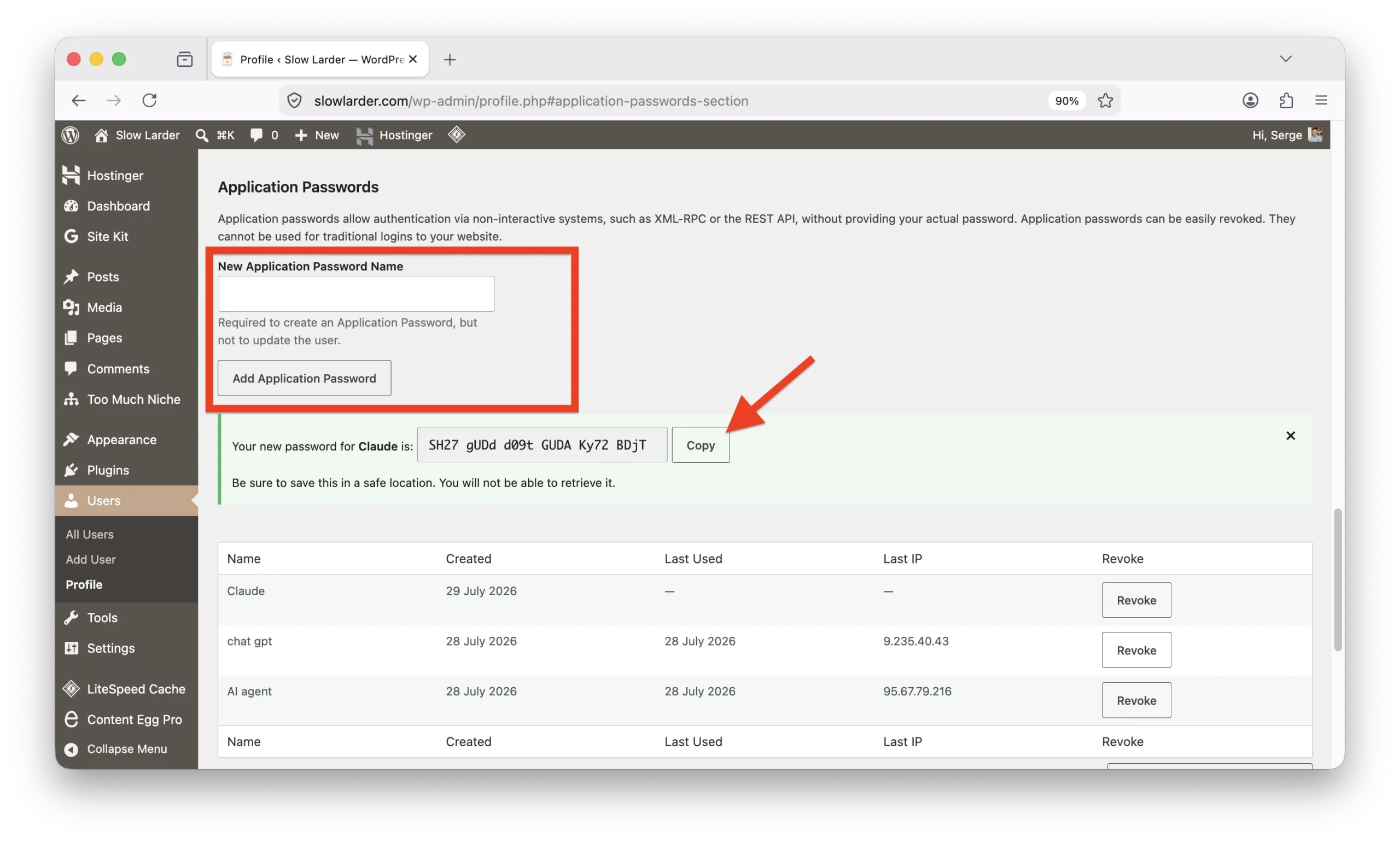
Log in as your new Editor and open Users → Profile → Application Passwords. Name one “Claude”, generate it and copy it immediately. WordPress only shows it once.
Step 3 — Allow your domain in Claude
This is the setting that makes the shorter route possible.
Claude runs code in a sandbox, and that sandbox can only reach websites you have approved. Your site is not on the list yet.
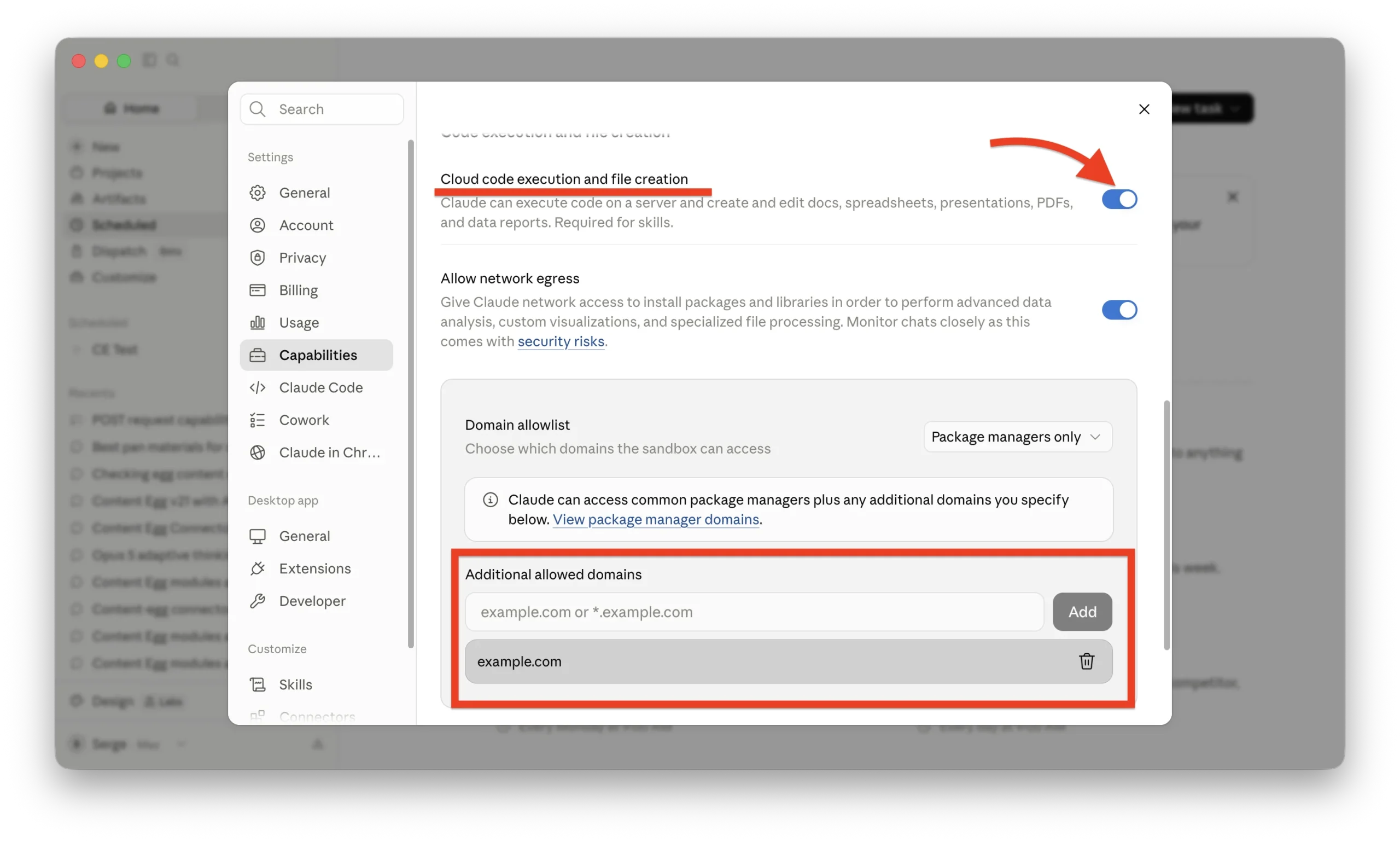
Open Settings → Capabilities in Claude. Check that Cloud code execution and file creation and Allow network egress are both switched on — they normally are. Then add your site under Domain allowlist → Additional allowed domains.
On a Team or Enterprise plan, an administrator may control those capability switches. If one is missing, ask whoever manages the workspace rather than hunting through the rest of the settings.
Use the domain your site actually runs on. If that is www.example.com, add exactly that, or use *.example.com to cover both versions.
That is the entire installation. There is nothing to download.
Step 4 — Start the conversation
Open a new chat and give Claude three things: your site address, your username, and the application password.
My WordPress site is https://example.com
Username: ai-assistant
Application password: xxxx xxxx xxxx xxxx xxxx xxxx
List my five most recent posts.
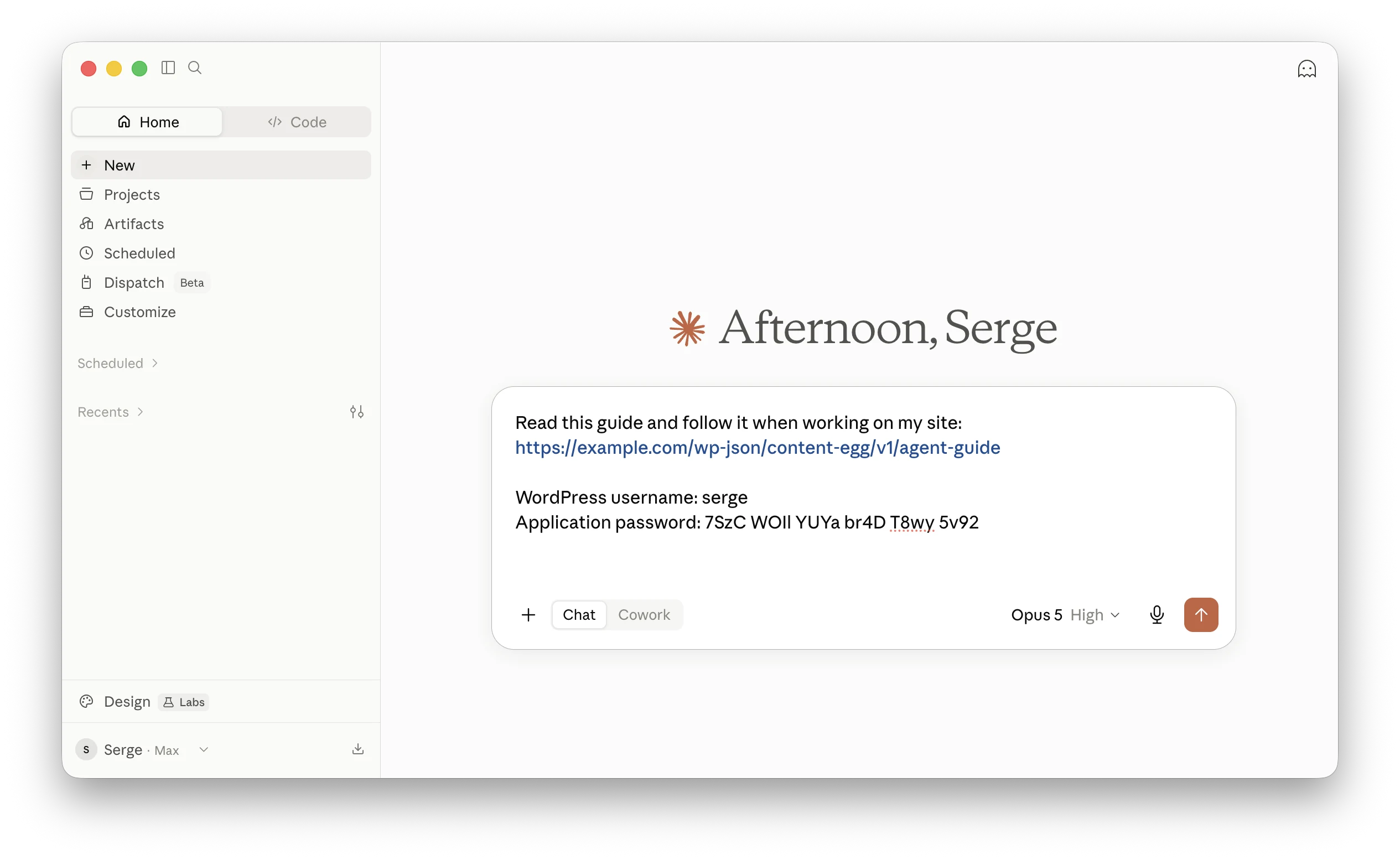
If a list of your posts comes back, the connection works.
Now try asking for something that changes the site:
Create a draft post called “Testing my new assistant” with two paragraphs about why I started this blog.
Open your WordPress dashboard. The draft is there.
One thing worth knowing about that password
Whatever you type into a chat stays in that conversation. That is how chats work, but it changes how you should treat the password.
Use the Editor account you made in Step 1, never your admin login. Name the application password after Claude so you know exactly which one to revoke. Treat it as spent when you are finished — a fresh one takes moments to generate.
This is the part most tutorials skip. It costs you nothing, and it limits what a leaked password can reach and how long it stays useful.
What Claude writes on its own
So Claude can write to your site now. The question is what it writes.
Ask it for a post about the best cast iron skillets and you will get several hundred words of reasonable prose. Maybe a markdown table. Maybe a bulleted list. It reads fine. It is also completely flat.
There are no products in it. No prices. No images. No affiliate links. No useful comparison table. Nothing that will still be accurate three months from now. Claude wrote an article about products without product data, because there was none to give it.
It does not know your site either. Not your layout, not your conventions, not the blocks your theme renders well. It cannot know, because nothing has told it.
That is the ceiling of a plain connection. It is a real one, and it is the reason the rest of this post exists.
Where the products come from
Everything above works on any WordPress site. This next part needs Content Egg, which is my plugin, so read the rest knowing that.
Content Egg pulls product data into WordPress — from Amazon, affiliate networks, product feeds and shops with no API at all. It has done that since 2016. What is new is that Claude can now use it.
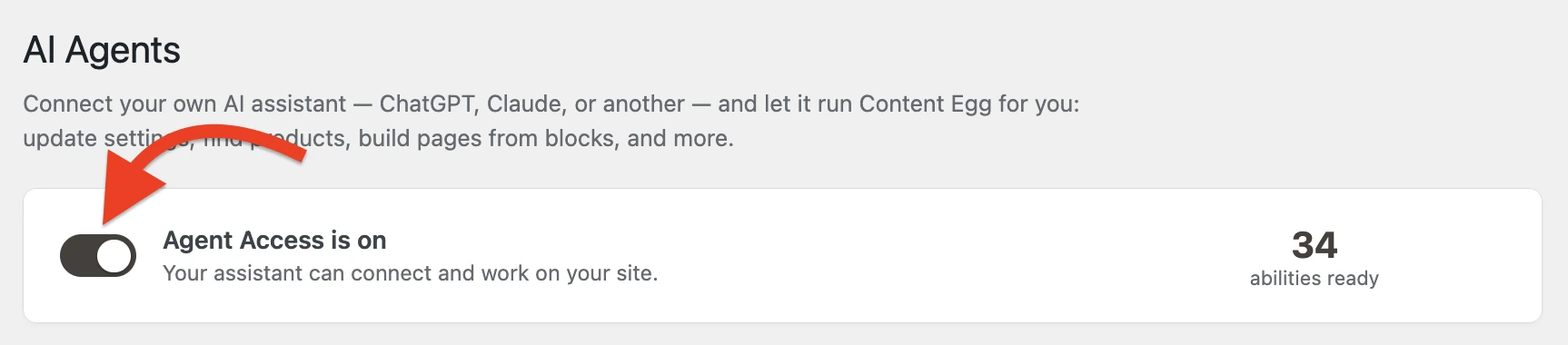
The connection is the one you already made. Same application password. Same allowed domain. Nothing else to install. You switch it on in Content Egg → AI Agents, and that page has a Claude tab with the exact link to give Claude.
From that point, Claude is not guessing about products. It searches your actual modules, pulls real items with real prices, and builds pages around them.
What changes in the output
Ask for the same cast iron roundup now and something different comes back.
The products are real. Claude searches your Amazon module, your feed or whichever networks you have connected, then picks from what is actually there. Each product brings its price, image, stock status and your affiliate link.
Those prices stay current. This is the part people miss: product data is not frozen into the text when the post is written. Prices and stock hydrate when the page renders. An article written by a plain AI assistant starts going stale the moment it is published.
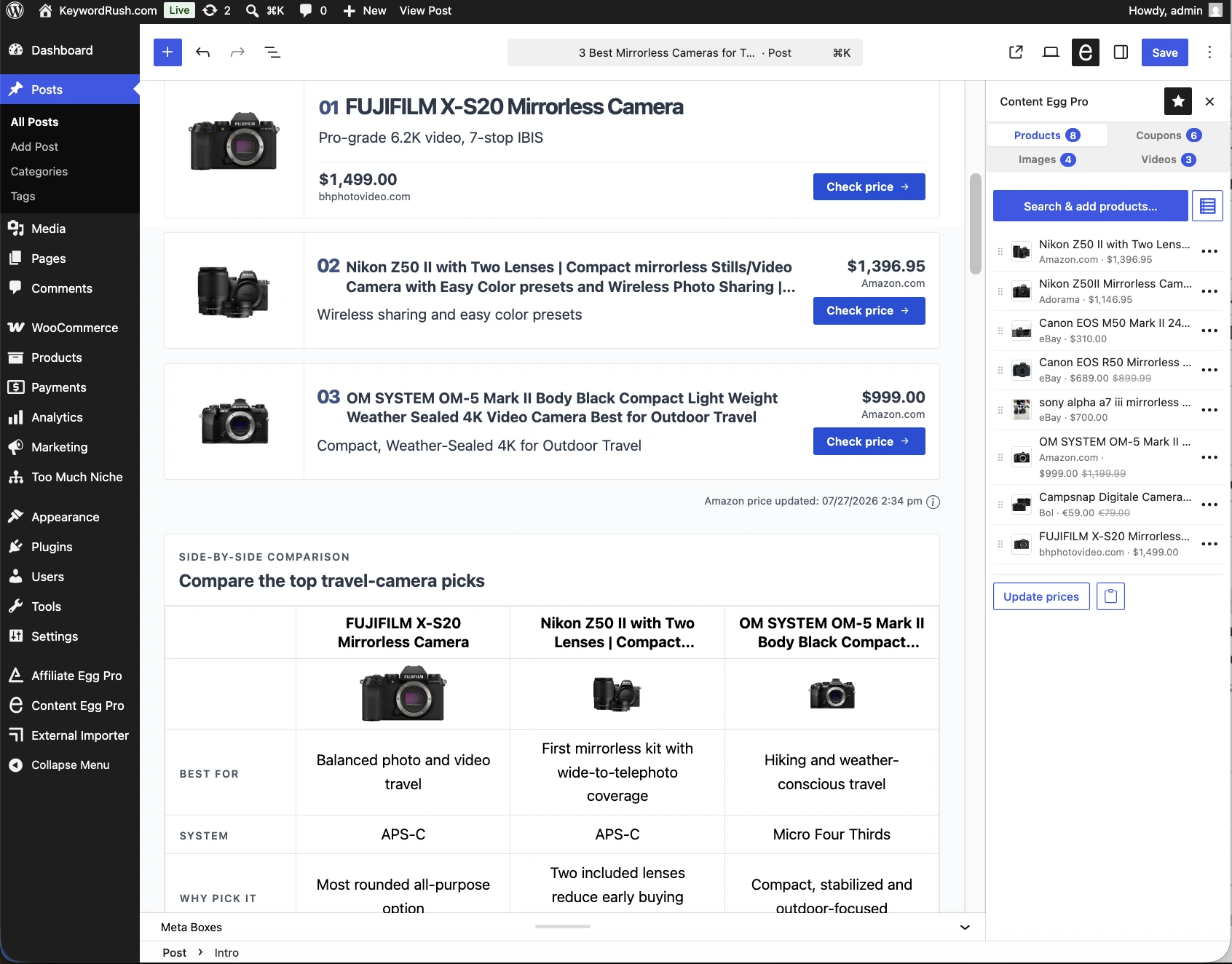
The structure is real too. Content Egg ships 25 Egg Blocks — the pieces a buying guide is actually made of. An intro, quick picks, product cards, pros and cons, a comparison table, specifications, an FAQ, a verdict. Claude assembles those instead of writing one long column with a markdown table dropped into it.
It can also find images and videos in your media modules and set a featured image.
Why the output is different in kind
The products explain half of it. The other half is a thing called the agent guide.
Your site publishes a short guide describing what it can do and how Claude should use it — which block belongs where, when a comparison table beats prose, how a roundup should be shaped. The guide comes from your actual installation. It describes your modules and blocks, not a generic idea of a WordPress site.
You paste the link once at the start of a conversation. Claude reads it and works accordingly.
This is why the result is not simply a tidier version of what came before. Claude was guessing at a site it could not see. Now the site tells it how to build.
What you need for this part
Searching for products is free. Building and editing pages needs Content Egg Pro. Your WordPress installation also needs to be reasonably current, since the agent feature uses a newer WordPress capability.
Better to know that here than three steps into the setup.
Set it up once with a Project
If you plan to do this more than once, stop pasting your details into every new chat.
Create a Project in Claude and put your site address, username and agent guide link into its Context. Every conversation inside that project starts ready to work. You only need to say what you want built.
You can put the application password there too, and it is convenient. Be honest about the trade: it stays there until you remove it. If the project is shared with a workspace, everyone in that workspace has a working login to your site. That can be a reasonable choice for a private project and the Editor account from Step 1. It is not reasonable for a shared project or an admin account.
What this actually gets you
You can now ask for a buying guide in one sentence and get a finished page with real products, live prices, a comparison table and a verdict. Claude builds drafts by default, and everything it does is recorded in the activity log on the AI Agents page. You can see exactly what happened before anything goes live.
That is a good place to stop and be pleased with yourself.
It is also still you, sitting there, asking for one post at a time.
Monday morning, without you
Claude can run a prompt on a schedule. Once a week. Once a day. Whenever you like. It runs on Anthropic’s side, so your computer does not need to be on.
Which means the whole thing above can happen without you in the room.
The problem nobody mentions
A scheduled task has no memory. Every run starts from nothing. It does not know what it built last week or the week before. Left alone, it will happily write the same article seven times.
There is a neat way around this. It is the difference between a demo and something you can leave running.
Use your site as the memory.
Content Egg can search your existing posts. Instead of asking the task to remember, make it look at what is already published and work out what is missing. Give it a list of topics, and every week it checks which ones have a post, takes the first gap, and builds it. Last week’s post becomes this week’s memory.
Add more topics whenever you think of them. It keeps going.
The task
Here is the whole thing. Put your topic list at the bottom and set it to run weekly.
Follow the Content Egg agent guide for my site. The link and my login details are in this project’s Context.
- Take my topic queue below. For each topic, use find-posts to check whether a post about it already exists on the site.
- Pick the first topic that does not have one yet. If every topic is covered, stop and tell me the queue is empty. Do not invent a topic.
- Look at my active product modules and search for the products this topic needs. Match the number of products to the topic — a roundup needs several, a single-product review needs one.
- Research the topic on the open web for context: what buyers care about, what they complain about, how to choose between options. Use that for the editorial copy.
- Build the page with Egg Blocks. Validate the layout before you create anything.
- Publish it, and set a featured image from one of my image modules.
- Reply with the topic you chose, the products you used, and a link to the finished post.
TOPIC QUEUE:
- best cast iron skillets for beginners
- carbon steel versus cast iron pans
- best enameled dutch ovens under $100
Two details in there matter more than they look.
Step 2 tells it to stop rather than improvise. Without that line, an assistant that finds nothing left to do will invent something to fill the gap, and inventing topics is how automated blogs turn into landfill.
Step 3 lets the topic decide the shape. A roundup wants several products. A review of one product wants one. Telling Claude to match the topic keeps both honest — a minimum would pad the review, and a maximum would gut the roundup.
Start on drafts, then let it publish
The task above publishes. That is intentional. Most people asking for automation want a post that goes live while they are asleep.
For the first few weeks, change one word and have it create drafts instead. Read what appears on Monday. See whether it chose the products you would have chosen, then adjust the prompt where it drifts. When you trust the result, switch it back to publishing.
You are not checking whether it works. You are learning what it does when you are not watching.
The other task worth running
There is a second job that suits a schedule even better, and it does not write anything at all.
Once a week, find the roundups published more than three months ago. Refresh their product data. Report which prices moved and which products went out of stock.
Every affiliate site owner knows they should do this. Almost nobody does, because it is boring and there is always something more interesting to write. A scheduled task does not find it boring.
This is where the plain connection reaches another hard limit. A normal WordPress post has no product data to refresh. There is nothing there but words. This maintenance job only exists because the products are real.
So where does that leave MCP
I said at the top that MCP keeps one advantage, and it does. Your password stays in a file on your own computer instead of living inside a conversation. If you are working with an admin account, or on a site where that matters more than convenience, use the MCP server. It connects to the same plugin and does the same work.
For everyone else, the shorter path is simpler. There is no local server to install or keep updated, and the connection works even on a machine where you cannot install software.
What you actually built here
Three things.
A connection, made from one WordPress feature and one setting in Claude. A plugin that turns flat prose into pages with real products and current prices. And a schedule that runs the whole thing while you are doing something else.
The interesting part is not that the writing is automated. It is that you stopped writing every post and started deciding which posts get written.
Content Egg: https://www.keywordrush.com/contentegg
Documentation: https://ce-docs.keywordrush.com/ai-agents/ai-agents
Written August 2026. Claude’s settings move around from time to time — if a screen looks different, the shape of the setup is still the same.

With 20 years in affiliate marketing, Serge creates practical WordPress tools such as Content Egg and External Importer that help publishers manage and grow their affiliate sites.