
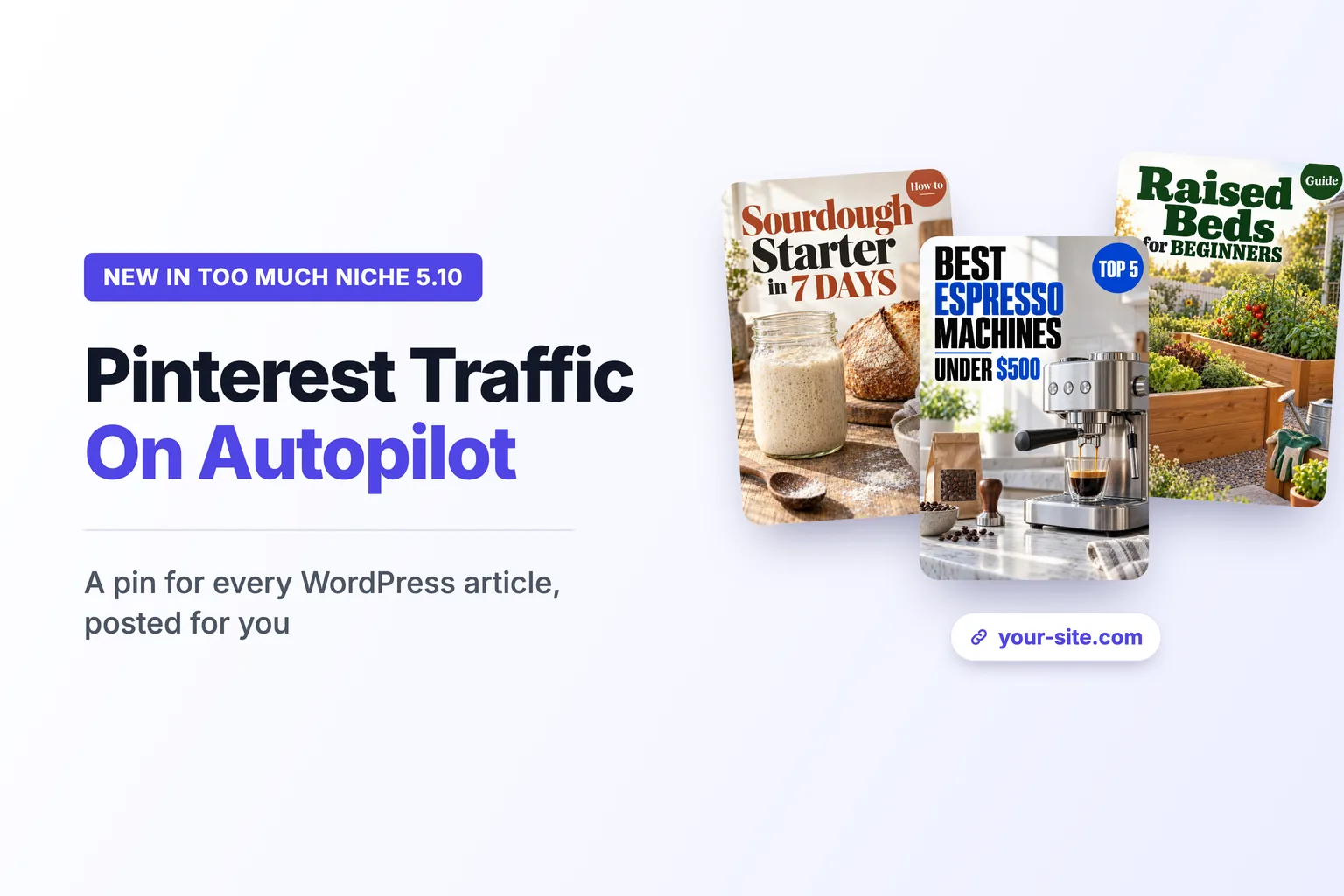
Most niche site owners think of Pinterest as social media. Something you post to when you have time. Which, for most of us, means never.
That’s a mistake. Pinterest works a lot more like a search engine than a social network. People open it to look for things: a recipe for tonight, a gift idea, a way to fix a wobbly table. They type a query, scroll through the results, and click through to the page behind the pin.
That page can be yours.
Why Pinterest is worth your time
Three things make Pinterest different from the other networks.
Every pin is a link. A pin isn’t just a picture. It points to a page, and people click it when they want the full answer. On most social networks, links are something the platform quietly tries to keep people away from. On Pinterest, sending people to the source is the whole point.
Pins last. A tweet is gone in a few hours. A good pin keeps showing up in search and in people’s feeds for months, because people keep searching for the same things.
It doesn’t depend on Google. If your traffic comes from one search engine, one update can cut it in half overnight. Pinterest won’t replace Google, but a second source of visitors makes your site much less fragile.
It works best for visual niches: food, home, garden, DIY, beauty, crafts. If your site reviews accounting software, Pinterest won’t do much for you. If it’s about kitchen gear or houseplants, it probably will.
The problem: pins take work
So why doesn’t everyone do it? Because a good pin takes effort.
A pin needs to be tall (2:3), with a clear photo and a headline you can read on a phone. Your featured image doesn’t qualify. It’s wide, so Pinterest crops it, and it usually has no text.
I know how much work this is. On another project of mine, a crochet pattern site, I built a small tool that writes the pin text and makes the images for every new pattern. Then someone copies them to Pinterest by hand and schedules them. It works. But it’s still a manual step, and manual steps are the first thing to slip when you get busy.
That’s fine for one site with a few new posts a week. It doesn’t work when you publish fifty articles a month.
The part Pinterest already automates
Here is something many people don’t know: Pinterest can publish pins from your site on its own. It’s called auto-publish from RSS, and it’s a standard Pinterest feature.
You give Pinterest an RSS feed and pick a board. Pinterest checks the feed and turns each new item into a pin, with the item’s image, title and description, linking back to the article. You don’t need a scheduler or a third-party tool.
A few practical notes:
- You need a Pinterest business account (free) and a claimed website. The option doesn’t show up until your site is claimed.
- Each feed goes to one board. Want a board per topic? Use a feed per category.
- Pinterest adds new pins within 24 hours, up to 200 a day, oldest first.
- You set it up on desktop, under Settings → Import content → RSS.
And here’s the catch. Your WordPress site already has an RSS feed, but it usually won’t make good pins. Pinterest needs an image in each feed item, and the standard WordPress feed often doesn’t include one. Even when a plugin adds your featured image, you’re back to a wide picture with no text.
So the feed is there, and the auto-posting is there. What’s missing is the pin itself.
What I added to Too Much Niche
Too Much Niche is my AI niche-site builder for WordPress. It plans a whole site first, then writes the articles. In version 5.10, it can also make a Pinterest pin for each new article.
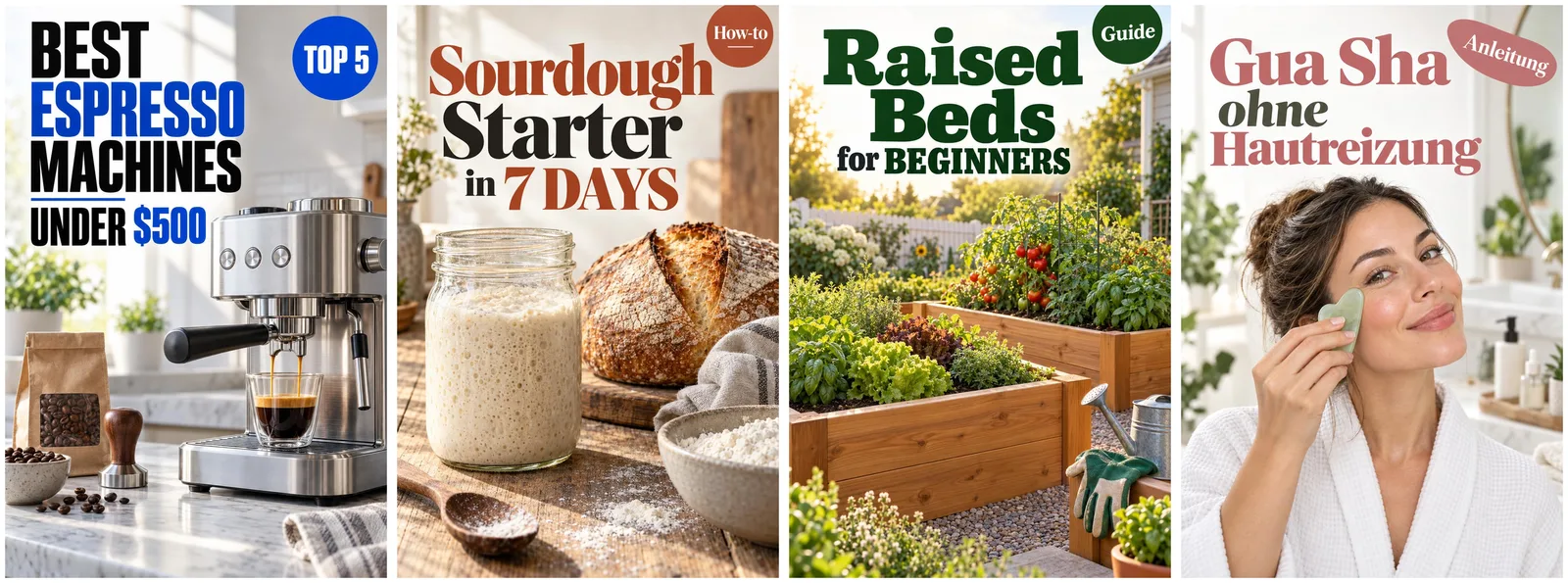
Each pin is a tall 2:3 image with a bright photo that matches the article and the headline set on top. You pick the headline font and an accent color, or let TMN choose one look for the whole site, so your boards look like a series and not a random mix. The headline is written in your site’s language. The German pin above was made the same way as the English ones.
The pin is saved next to the featured image, not instead of it. Your theme keeps showing the wide image, and Pinterest gets the tall one.
TMN also publishes the feeds Pinterest needs: one for the whole site and one for each category. A new Pinterest page in the plugin lists them with a copy button, and shows when Pinterest last read each one. That way you can see the connection is working without waiting for the first pin to appear.
Only published posts go into the feeds. Drafts, scheduled posts and password-protected pages stay out. A scheduled article joins the feed on the day it goes live.
Pin generation is included in your TMN plan. It doesn’t use extra credits.
How to set it up
- Turn it on. In Too Much Niche, open your Generation Preset → Images → Pinterest pin. Pick a font and a color, or leave both on Auto.
- Claim your site on Pinterest and create your boards. Pinterest explains it here: Claim your website.
- Connect the feeds. Copy a feed URL from Too Much Niche → Pinterest and paste it into Pinterest under Settings → Import content → RSS → Connect, then Auto-publish → Connect RSS Feed.
That’s the whole setup. From then on, every article you generate brings its own pin, and Pinterest posts it for you.
The full guide, with troubleshooting, is in the docs: Pinterest pins.
A few honest notes
I won’t promise you a traffic number. Pinterest results depend a lot on your niche, your boards and time. It’s a slow channel. Pins tend to pick up over weeks, not days.
And pins only come with new articles. TMN doesn’t go back and make pins for posts you already have.
Try it
If you already use Too Much Niche, update to 5.10 and turn on pins in your preset. If you don’t, here’s what it does.
Either way, give Pinterest a real try. It’s one of the few places left where people still click through to the source.

With 20 years in affiliate marketing, Serge creates practical WordPress tools such as Content Egg and External Importer that help publishers manage and grow their affiliate sites.